
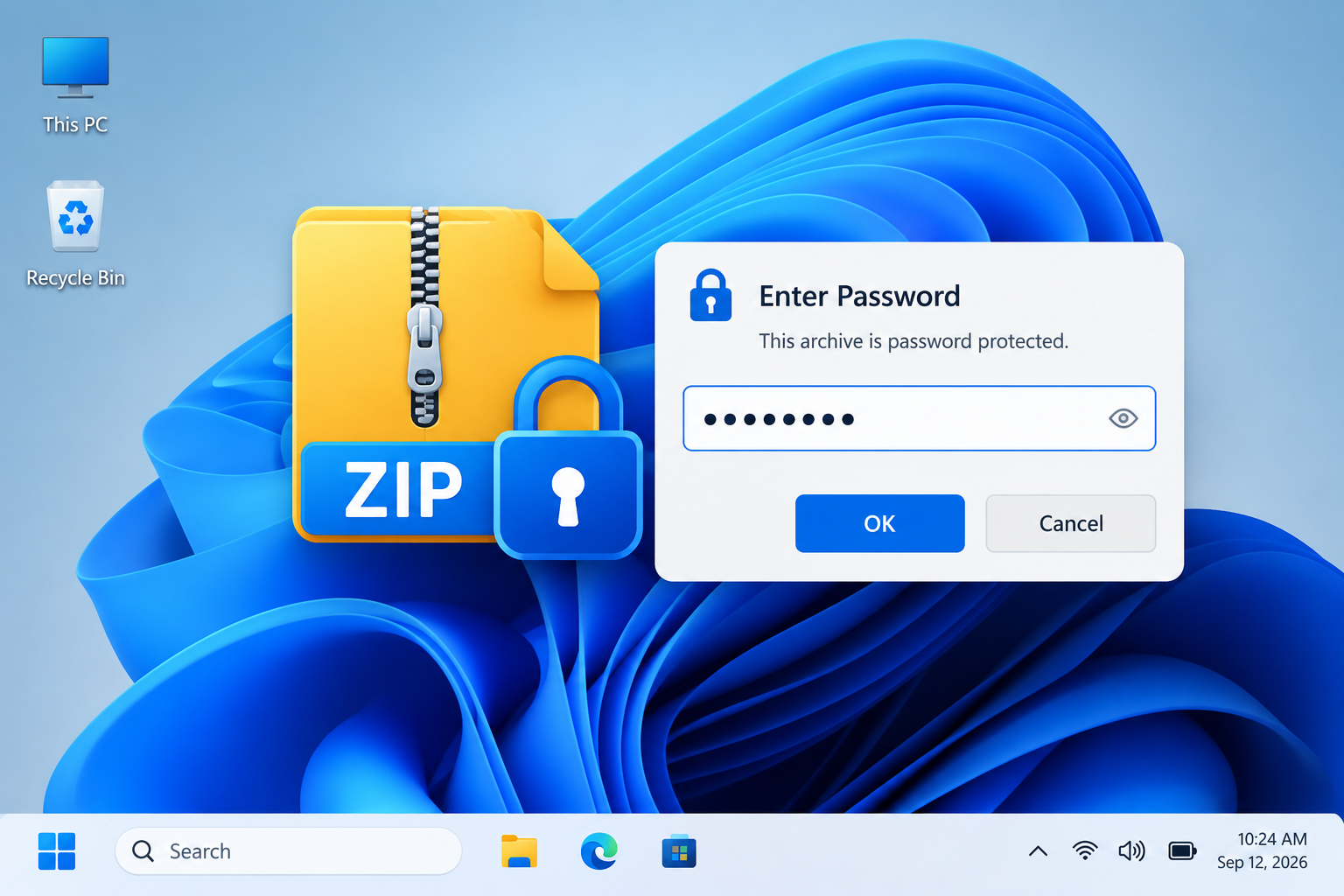
ZIP files are a convenient way to combine multiple files into a single compressed archive, but they are not automatically protected from unauthorized access. If a ZIP file contains personal documents, work files, or other sensitive information, adding password protection can provide an additional layer of security.
Windows 11 doesn’t provide a straightforward built-in option for creating password-protected ZIP files, so many users turn to third-party archive utilities such as 7-Zip or WinRAR.
In this guide, we’ll show you how to password protect ZIP files in Windows 11 using practical methods, explain the security options you should pay attention to, and cover what to know before sharing a protected ZIP archive with someone else.
Method 1: Password Protect a ZIP File Using 7-Zip
One of the easiest ways to create a password-protected ZIP file in Windows 11 is with 7-Zip. The utility is free to use and supports encryption when creating archive files.
Step 1: Install 7-Zip
If 7-Zip is not already installed on your computer, download and install it from the official 7-Zip website.
Once installed, you can use 7-Zip directly from the Windows File Explorer context menu.
Step 2: Select the Files You Want to Protect
Open File Explorer and locate the files or folders you want to put into the ZIP archive.
Select the items, right-click them, and choose:
7-Zip → Add to archive…
This opens the archive creation window.
Step 3: Choose ZIP as the Archive Format
In the Add to Archive window, find Archive format and select:
zip
7-Zip can create archives in several formats, but ZIP is generally the more convenient choice when you need to share the file with people using different operating systems or archive utilities.
Step 4: Set a Password
In the Encryption section, enter your chosen password in the password field and enter it again to confirm it.
If the option is available, select:
AES-256
This provides encryption for the contents of the archive rather than simply relying on the ZIP file being difficult to open.
Step 5: Create the Protected ZIP File
Once you have selected the ZIP format and entered your password, click OK.
7-Zip will create the archive in the selected location. The resulting ZIP file will require the password when someone attempts to extract its encrypted contents.
Step 6: Test the ZIP File
Before sending the archive to someone else, it is a good idea to test it yourself.
Open the ZIP file and try to extract one of the protected files. You should be prompted for the password.
If the password works, the archive is ready to share.
Important: Keep the password separate from the ZIP file when sharing it. Sending the archive and its password through the same unsecured message reduces the benefit of password protection.
Method 2: Password Protect a ZIP File Using WinRAR
If you already have WinRAR installed, you can use it to create a password-protected ZIP archive without needing another compression utility.
Step 1: Select Your Files
Open File Explorer and locate the files or folders you want to protect.
Select the items, right-click them, and choose WinRAR → Add to archive…
Step 2: Select ZIP as the Archive Format
In the Archive name and parameters window, look for Archive format and select:
ZIP
WinRAR also supports its own RAR format, but ZIP can be more convenient when sharing an archive with people who may not have WinRAR installed.
Step 3: Set a Password
Click Set password… to open the password options.
Enter your password and confirm it when prompted.
If WinRAR provides an encryption method option in your version, select AES-256 where available.
You may also see an option to Encrypt file names. This is useful when available because it can prevent the names of files inside the archive from being visible without the password.
Step 4: Create the Archive
Click OK to close the password window and then click OK again in the main archive window.
WinRAR will create the password-protected ZIP file in the selected location.
Step 5: Test the Archive
Before sharing the ZIP file, open it and attempt to extract one of the files.
Enter the password when prompted and confirm that the file can be extracted successfully.
If the password works, the archive is ready to share.
Keep the Password Secure
A password-protected ZIP file is only as secure as the password protecting it. Avoid using easily guessed information such as your name, birthday, or a simple sequence of numbers.
When sharing the archive with someone else, consider sending the password through a separate communication channel rather than including it in the same message as the ZIP file.
Can Windows 11 Password Protect ZIP Files Without Extra Software?
Windows 11 can create and extract standard ZIP files directly through File Explorer, but it does not provide a simple built-in option to add a password and encryption when creating a ZIP archive.
For example, you can right-click files in File Explorer and use Compress to ZIP file to create an archive, but Windows does not present a password field as part of this process.
If you specifically need a password-protected ZIP file, using a dedicated archive utility is the more practical approach.
Which Method Should You Use?
For most Windows 11 users, 7-Zip is a straightforward option because it is free and supports encrypted ZIP archives.
WinRAR is another option, particularly if you already have it installed or regularly use it for managing compressed files.
Whichever utility you choose, make sure you remember the password before deleting the original files. Password-protected archives generally cannot simply be recovered if the password is forgotten.
How to Choose a Strong Password for a ZIP File
Adding a password to a ZIP archive can help protect its contents, but the password itself still matters. A short or predictable password may be easier to guess or crack than a longer, unique one.
When creating a password for a protected ZIP file:
- Use a long password rather than a short combination of characters.
- Avoid obvious personal information, such as your name, birthday, phone number, or address.
- Don’t reuse an important password from your email, banking, or other accounts.
- Consider using a passphrase made up of several unrelated words.
- Use a unique password if the archive contains particularly sensitive information.
Share the Password Separately
If you’re sending a password-protected ZIP file to another person, avoid sending the ZIP file and password in the same message whenever practical.
For example, you could send the ZIP file by email and communicate the password through a separate messaging service or another communication method.
This does not make the archive invulnerable, but separating the password from the file reduces the risk of someone who gains access to the original message immediately having everything needed to open the archive.
How to Open a Password-Protected ZIP File
Once a ZIP file has been protected with a password, the recipient will need the correct password to access its encrypted contents.
The exact process can depend on the software used to create the archive.
Using 7-Zip
If you have 7-Zip installed:
- Locate the password-protected ZIP file in File Explorer.
- Right-click the file.
- Select 7-Zip and choose an extraction option.
- Choose where you want to extract the files.
- Enter the ZIP file’s password when prompted.
- Confirm the extraction.
If the password is correct, 7-Zip will extract the files to the selected location.
Using WinRAR
If you use WinRAR:
- Locate the protected ZIP file.
- Right-click it and select a WinRAR extraction option.
- Choose the destination folder.
- Enter the password when prompted.
- Continue with the extraction.
What If the Password Doesn’t Work?
If the password is rejected, first check that it was entered correctly. Pay attention to capital letters, spaces, numbers, and special characters.
If the password is still rejected, contact the person who created the archive and ask them to confirm the password.
There is generally no simple built-in Windows option that can bypass a properly encrypted archive when the correct password is unknown. This is an important reason to keep passwords stored securely and avoid deleting the original unencrypted files until you have confirmed that the protected archive works.
Common Problems When Password Protecting ZIP Files
Password-protecting a ZIP file is usually straightforward, but a few issues can cause problems when creating or opening an encrypted archive.
Windows Doesn’t Give Me a Password Option
If you’re creating a ZIP file directly through Windows File Explorer, you may not see an option to set a password.
This is expected. Windows 11 supports creating and extracting standard ZIP files, but Microsoft’s current documentation states that Windows does not support operations on encrypted archives. For encrypted ZIP files, Microsoft recommends using third-party applications such as 7-Zip or WinRAR.
The Password Doesn’t Work
If the password is rejected, check that you have entered it exactly as it was created. Passwords can be case-sensitive, and an extra space or incorrect character can prevent the archive from opening.
If you still cannot open the archive, contact the person who created it and ask them to confirm the password.
The Recipient Can’t Open the ZIP File
Compatibility can depend on the software being used to open the archive, particularly when encryption is involved.
If the recipient’s default Windows tools cannot open an encrypted archive, installing a compatible archive utility such as 7-Zip or WinRAR may resolve the problem.
I Forgot the Password
A forgotten ZIP password can be difficult or impossible to recover, depending on how the archive was created and the encryption used.
For important archives, store the password somewhere secure, such as a reputable password manager. Do not delete the original files until you have confirmed that the protected archive can be opened successfully.
My ZIP File Is Still Accessible
Remember that password-protecting a ZIP archive protects the archive, not necessarily every copy of the original files elsewhere on your computer.
If you created a protected ZIP and then leave the original unprotected documents in an easily accessible folder, those original files are still available without the ZIP password.
For sensitive information, consider how and where both the original files and the protected archive are stored.
Which Method Should You Use?
The best method depends largely on what you already have installed and how often you need to create protected archives.
Use 7-Zip If You Want a Free Option
7-Zip is a practical choice if you regularly need to create encrypted ZIP files and don’t already have an archive utility installed.
It provides password protection and encryption while also handling other common archive formats.
Use WinRAR If You Already Have It
If WinRAR is already installed on your computer, there is little reason to install another program just to create a password-protected archive.
Its archive creation tools provide the necessary options for setting a password and encryption.
Use Windows File Explorer for Regular ZIP Files
If you don’t need password protection, Windows 11’s built-in ZIP functionality may be all you need for creating and extracting ordinary ZIP files.
However, if the files contain sensitive information and you specifically want the archive encrypted, you’ll need an appropriate third-party archive utility.
The Important Part
Regardless of which utility you use, make sure you test the protected archive before deleting the original files and keep the password somewhere secure.
A password-protected ZIP file is useful for reducing unauthorized access to the archive, but it should not be treated as a replacement for good password management or other security practices.
Frequently Asked Questions
Can I password protect a ZIP file in Windows 11 without installing software?
Windows 11 can create standard ZIP files through File Explorer, but it does not provide a straightforward built-in option for creating encrypted ZIP archives with a password. You can use a third-party archive utility such as 7-Zip or WinRAR instead.
Is 7-Zip free?
Yes. 7-Zip is free and open-source software. It can create password-protected archives and supports AES-256 encryption for ZIP archives.
Is WinRAR free?
WinRAR provides a trial period and can continue to be used after the trial period, although the software is commercially licensed. If you only need a free archive utility, 7-Zip is an alternative.
Is a password-protected ZIP file secure?
Password protection can help prevent unauthorized access to the contents of an archive, particularly when strong encryption and a strong, unique password are used. However, no security measure should be treated as completely foolproof.
Can I open a password-protected ZIP file without the password?
Normally, you need the correct password to access encrypted contents. If you have forgotten the password, recovery may be difficult or impossible depending on the encryption and the archive software used.
Can I send a password-protected ZIP file by email?
Yes. A password-protected ZIP file can be attached to an email like a normal file, provided it meets the email provider’s attachment and security restrictions. For sensitive files, send the password separately rather than including it in the same email.
Does password-protecting a ZIP file protect the original files?
No. The protection applies to the files contained in the encrypted archive. If the original files remain elsewhere on your computer, they are not automatically protected by creating a password-protected copy.
Final Thoughts
Password-protecting a ZIP file is a simple way to add protection when sharing or storing files that you don’t want others to access freely.
Windows 11 can handle standard ZIP files through File Explorer, but if you need an encrypted archive protected by a password, a utility such as 7-Zip or WinRAR is a more practical option.
For most users, the process only takes a few steps: select your files, create the archive, choose an encryption option, set a strong password, and test the finished ZIP file before sharing or deleting the originals.
Most importantly, keep the password secure and don’t send it alongside the archive whenever possible. A protected ZIP file is only useful if the password itself is properly managed.
Leave a Reply