
Data loss can happen when you least expect it. Whether it’s caused by hardware failure, accidental deletion, malware, or a failed Windows update, losing important files can be frustrating and sometimes costly. That’s why reliable backup software has become an essential tool for both home users and businesses.
AOMEI Backupper is one of the better-known backup solutions for Windows, offering features such as system backups, disk cloning, file synchronization, and scheduled backups. It aims to make protecting your data straightforward, even if you have little technical experience.
But with several backup tools available including competitors like EaseUS Todo Backup is AOMEI Backupper worth using in 2026?
In this review, we’ll take an objective look at AOMEI Backupper’s features, performance, pricing, advantages, and limitations to help you decide whether it’s the right backup software for your needs.
VisionTechHQ Quick Verdict
Rating: ★★★★☆ (4.5/5)
AOMEI Backupper is a dependable backup solution that offers a strong mix of essential backup, recovery, synchronization, and disk cloning features. Its clean interface makes it approachable for beginners, while its broader feature set gives more experienced users the flexibility to manage their backups effectively.
The free version is generous enough for many home users, although some advanced features are reserved for the paid editions. Overall, AOMEI Backupper is a solid choice for anyone looking to protect their data or upgrade their storage without unnecessary complexity.
What Is AOMEI Backupper?
AOMEI Backupper is a Windows backup and recovery solution developed by AOMEI Technology, a company that specializes in system utilities, disk management, and data protection software. The software is designed to help users safeguard their files, operating system, applications, and storage drives by creating backups that can be restored if data is lost or a system failure occurs.
The software supports a variety of backup methods, including system, disk, partition, and file backups, allowing users to choose the level of protection that best suits their needs. It also includes file synchronization and disk cloning tools, making it useful for users upgrading to a new hard drive or SSD without reinstalling Windows.
One of AOMEI Backupper’s strengths is its balance between ease of use and functionality. The interface is straightforward enough for beginners, while still offering advanced options for users who want more control over how and when backups are created.
Whether you’re protecting personal files, preparing for a hardware upgrade, or creating a recovery plan for your computer, AOMEI Backupper provides a range of tools aimed at reducing the risk of permanent data loss.
Key Features
AOMEI Backupper includes a range of tools designed to help users protect their data, recover from system failures, and migrate to new storage devices. Below are some of its most useful features.
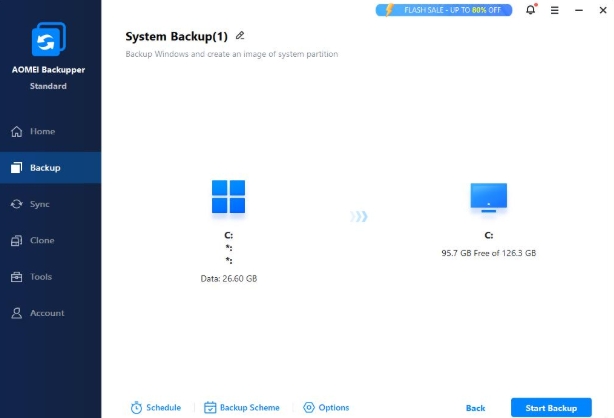
System Backup
AOMEI Backupper allows you to create a complete backup of your Windows operating system, including system settings, installed applications, and important files. If your computer encounters a serious problem, you can restore it to a previous working state without reinstalling everything.
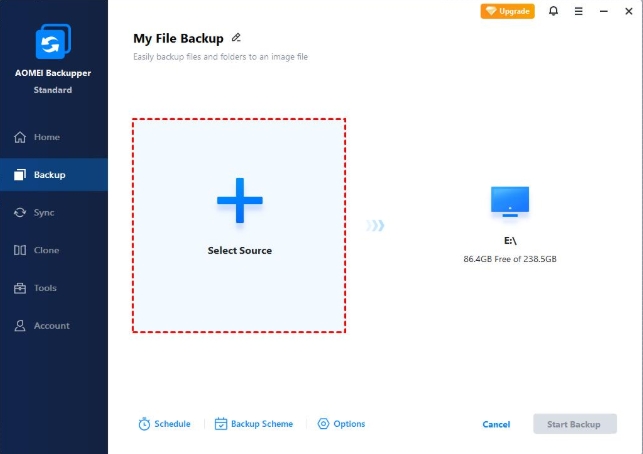
File and Folder Backup
If you only need to protect specific files or folders, the software lets you choose exactly what to back up. This is useful for safeguarding documents, photos, videos, and other important files without creating a full system image.
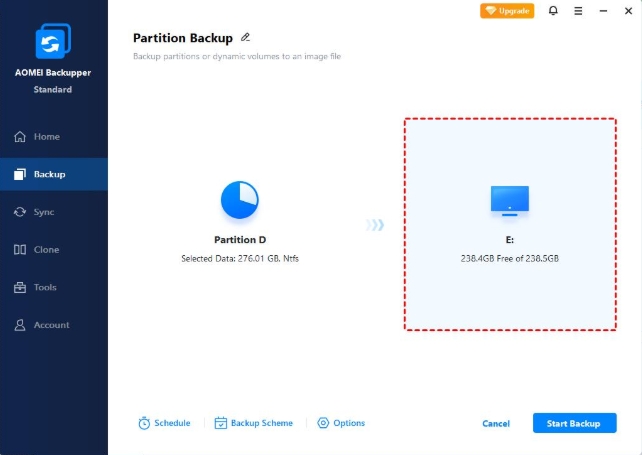
Disk and Partition Backup
AOMEI Backupper supports backing up entire hard drives as well as individual partitions. This provides greater flexibility for users with multiple storage devices or those who only want to protect certain sections of a drive.
Disk Cloning
The software includes disk cloning tools that allow you to transfer your operating system, applications, and files from one drive to another. This can simplify upgrading from a traditional hard drive to a faster SSD without reinstalling Windows.
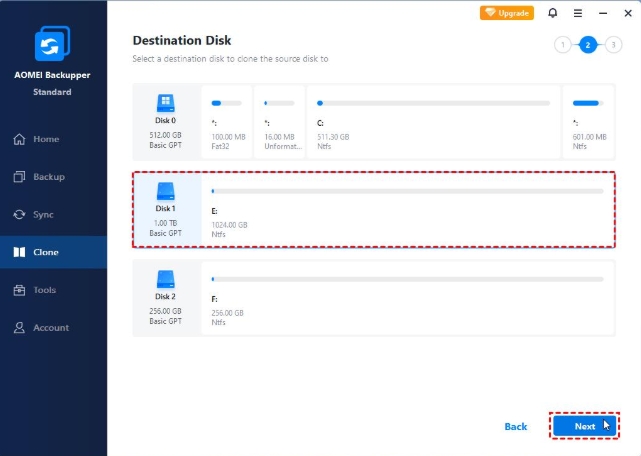
File Synchronization
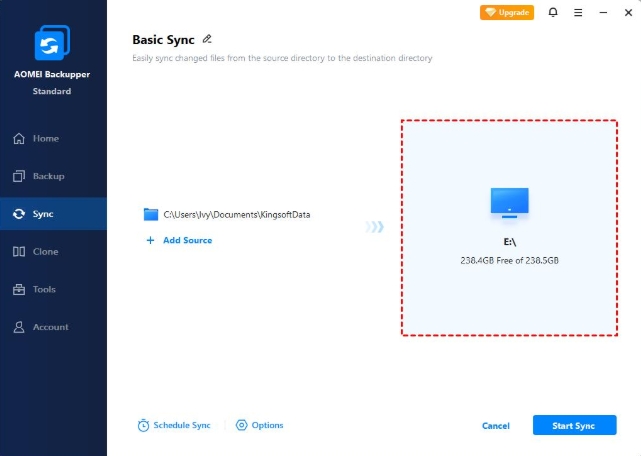
In addition to backups, AOMEI Backupper offers file synchronization. This feature helps keep files in different locations up to date, making it useful for users who work across multiple folders or storage devices.
Scheduled Backups
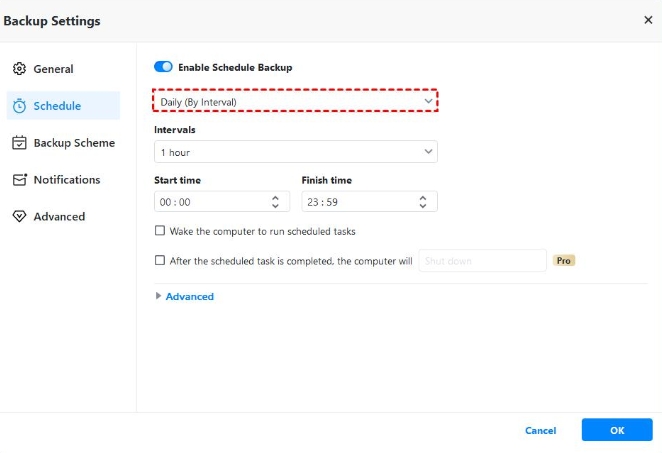
You can schedule backups to run automatically at regular intervals, such as daily, weekly, or monthly. This helps ensure your data remains protected without requiring you to remember to perform manual backups.
Recovery Options
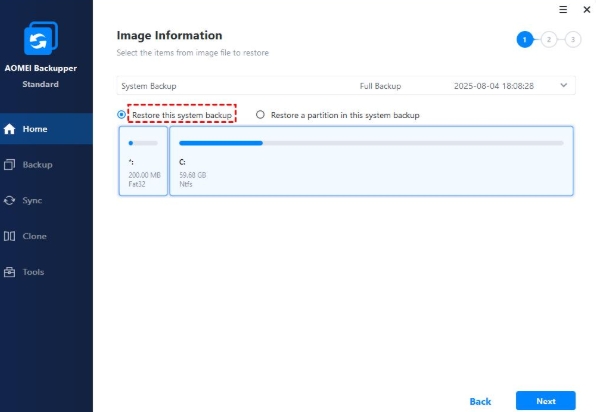
If data is lost or your system becomes unusable, AOMEI Backupper provides recovery tools that can restore individual files or an entire system backup, depending on your needs.
Pros & Cons
Like any backup software, AOMEI Backupper has strengths and limitations. While it offers a comprehensive set of tools for protecting data and managing backups, it’s important to understand where it excels and where it may not meet everyone’s needs.
Pros
- ✅ Clean and intuitive interface that’s easy for beginners to navigate.
- ✅ Supports system, disk, partition, and file backups.
- ✅ Includes disk cloning and file synchronization features.
- ✅ Automatic backup scheduling helps keep data protected with minimal effort.
- ✅ The free edition offers a solid range of features for personal use.
- ✅ Compatible with a wide range of Windows versions.
Cons
- ❌ Some advanced features are only available in the Professional edition.
- ❌ The interface, while user-friendly, may still require some learning for users completely new to backup software.
- ❌ Backup and restoration times vary depending on hardware performance and the size of the data being processed.
- ❌ Users looking for advanced enterprise-level backup management may find dedicated business solutions more suitable.
VisionTechHQ’s Take
AOMEI Backupper stands out by offering a generous set of features in its free edition while keeping the interface relatively easy to understand. For most home users, students, and small businesses, it provides everything needed to create reliable backups and prepare for unexpected data loss.
That said, it isn’t automatically the best choice for everyone. If you require highly specialized backup management or enterprise-grade deployment tools, you may need software designed specifically for those environments. For the average Windows user, however, AOMEI Backupper strikes a good balance between functionality and ease of use.
Performance & User Experience
AOMEI Backupper is designed to make backups accessible without sacrificing important functionality. From the moment you open the software, the interface is laid out in a logical way, with clearly labeled sections for backup, restore, clone, and synchronization tasks. This makes it relatively easy for first-time users to find the tools they need.
Setting up a backup is a straightforward process. You select the type of backup you want to create, choose the files, partition, or system you want to protect, and then select a destination for the backup. Optional settings, such as scheduling and backup schemes (where available), can be configured without navigating through complicated menus.
Like most backup software, performance depends on factors such as the amount of data being backed up, your computer’s specifications, and whether you’re using a traditional hard drive or a solid-state drive (SSD). The first full backup typically takes the longest, while subsequent incremental or differential backups when supported by your edition are generally faster because only changed data needs to be processed.
During normal use, AOMEI Backupper remains responsive, although you may notice increased disk activity while large backups or cloning operations are running. On modern systems, this is generally manageable, but users with older hardware may experience slower overall performance until the backup is complete.
Overall, AOMEI Backupper offers a user experience that balances simplicity with flexibility. Beginners should be able to perform common backup tasks without much difficulty, while more experienced users can take advantage of additional configuration options when needed.
Pricing
AOMEI Backupper is available in both free and paid editions, allowing users to choose a version that matches their backup requirements and budget.
The Standard (Free) edition includes many of the core features needed for everyday backups, such as system, disk, partition, and file backups. For many home users, this version provides enough functionality to protect important data without any upfront cost.
Users who need additional features can upgrade to one of AOMEI’s paid editions, which offer tools such as more advanced backup options, enhanced cloning capabilities, and other features aimed at power users and businesses. The specific features available vary depending on the edition you choose.
Since software pricing and promotional offers can change over time, it’s worth checking AOMEI’s official website for the latest information before making a purchasing decision.
Is the Paid Version Worth It?
For many personal users, the free edition offers a strong starting point and may be all that’s needed for regular backups. However, if you require advanced functionality, manage multiple systems, or want access to the full range of features, a paid edition may provide better long-term value.
Before upgrading, compare the features included in each edition to ensure you’re paying for functionality you’ll actually use rather than features you may never need.
Want to compare the available editions or check the latest pricing?
Visit the official AOMEI website to view the latest plans, features, and any current promotions.
👉 View AOMEI Backupper Plans
Who Should Buy It?
AOMEI Backupper is well suited to users who want a dependable backup solution without having to learn complicated backup procedures. Its combination of essential backup tools, cloning features, and an easy-to-navigate interface makes it a practical option for a variety of users.
You should consider AOMEI Backupper if you:
- ✔️ Want to protect important documents, photos, videos, and personal files from accidental loss.
- ✔️ Need to create regular system backups to recover from hardware failures, malware, or failed Windows updates.
- ✔️ Are planning to upgrade from an HDD to an SSD and want to migrate your system without reinstalling Windows.
- ✔️ Prefer automatic scheduled backups instead of creating backups manually.
- ✔️ Want a capable free backup solution for personal use.
It may not be the best choice if you:
- ❌ Only need cloud storage rather than dedicated backup software.
- ❌ Require enterprise-grade backup management for large organizations.
- ❌ Need every advanced feature without upgrading to a paid edition.
VisionTechHQ’s Recommendation
AOMEI Backupper is a practical choice for most Windows users who want a reliable way to protect their data. The free edition covers the essentials, making it a good option for students, home users, and anyone who wants regular backups without a financial commitment.
If your backup needs become more advanced over time, the paid editions provide additional tools that may be worth considering. Ultimately, the right choice depends on how much functionality you need and whether the extra features justify the cost for your particular use case.
Final Verdict
AOMEI Backupper remains a strong choice for Windows users looking for reliable backup software in 2026. It combines an easy-to-use interface with a comprehensive set of backup, recovery, cloning, and synchronization tools, making it suitable for both beginners and more experienced users.
One of its biggest strengths is the value offered by the free edition. Many users will find that it includes the core features needed to protect important files and create regular system backups. For those who need more advanced functionality, the paid editions expand the software’s capabilities without making the interface significantly more complicated.
Like any software, AOMEI Backupper isn’t without its limitations. Some advanced features require an upgrade, and users with very specific enterprise-level requirements may need a more specialized solution. However, for the majority of home users, students, professionals, and small businesses, it provides a dependable balance of usability, features, and flexibility.
If you’re looking for backup software that’s easy to learn, reliable for everyday use, and capable of growing with your needs, AOMEI Backupper is certainly worth considering.
VisionTechHQ Rating
| Category | Rating |
| Ease of Use | ⭐⭐⭐⭐⭐ (5.0/5) |
| Features | ⭐⭐⭐⭐☆ (4.5/5) |
| Performance | ⭐⭐⭐⭐☆ (4.2/5) |
| Value for Money | ⭐⭐⭐⭐☆ (4.3/5) |
| Overall Rating | ⭐⭐⭐⭐☆ (4.3/5) |
Thinking about trying AOMEI Backupper?
If it seems like the right backup solution for your needs, you can check the latest version, compare editions, and see current pricing on the official website.
👉 Visit the Official AOMEI Backupper Website
Frequently Asked Questions (FAQ)
Is AOMEI Backupper free?
Yes. AOMEI Backupper offers a free Standard edition that includes essential backup features for personal use. Users who need additional functionality can upgrade to one of the paid editions.
Can AOMEI Backupper create a full system backup?
Yes. The software can create a complete system backup, allowing you to restore Windows, installed applications, and system settings if your computer experiences a major issue.
Does AOMEI Backupper support automatic backups?
Yes. AOMEI Backupper allows users to schedule automatic backups on a daily, weekly, or monthly basis, helping ensure important data is backed up regularly.
Can I clone my hard drive with AOMEI Backupper?
Yes. The software includes disk cloning tools that can help migrate your operating system and files from one HDD or SSD to another, making storage upgrades more convenient.
Is AOMEI Backupper suitable for beginners?
Yes. The interface is designed to be straightforward and easy to navigate. Most users can create their first backup without needing advanced technical knowledge.
What’s the difference between AOMEI Backupper and EaseUS Todo Backup?
Both are well-known Windows backup solutions that offer system backups, disk cloning, and recovery tools. The better choice depends on your specific needs, budget, and the features that matter most to you. If you’re deciding between the two, we’ll also be publishing a dedicated comparison article covering their strengths, weaknesses, and key differences.
Is AOMEI Backupper worth it in 2026?
For most Windows users, AOMEI Backupper remains a reliable backup solution in 2026. Its free edition offers a solid feature set, while the paid editions add more advanced capabilities for users with more demanding backup needs.
Leave a Reply