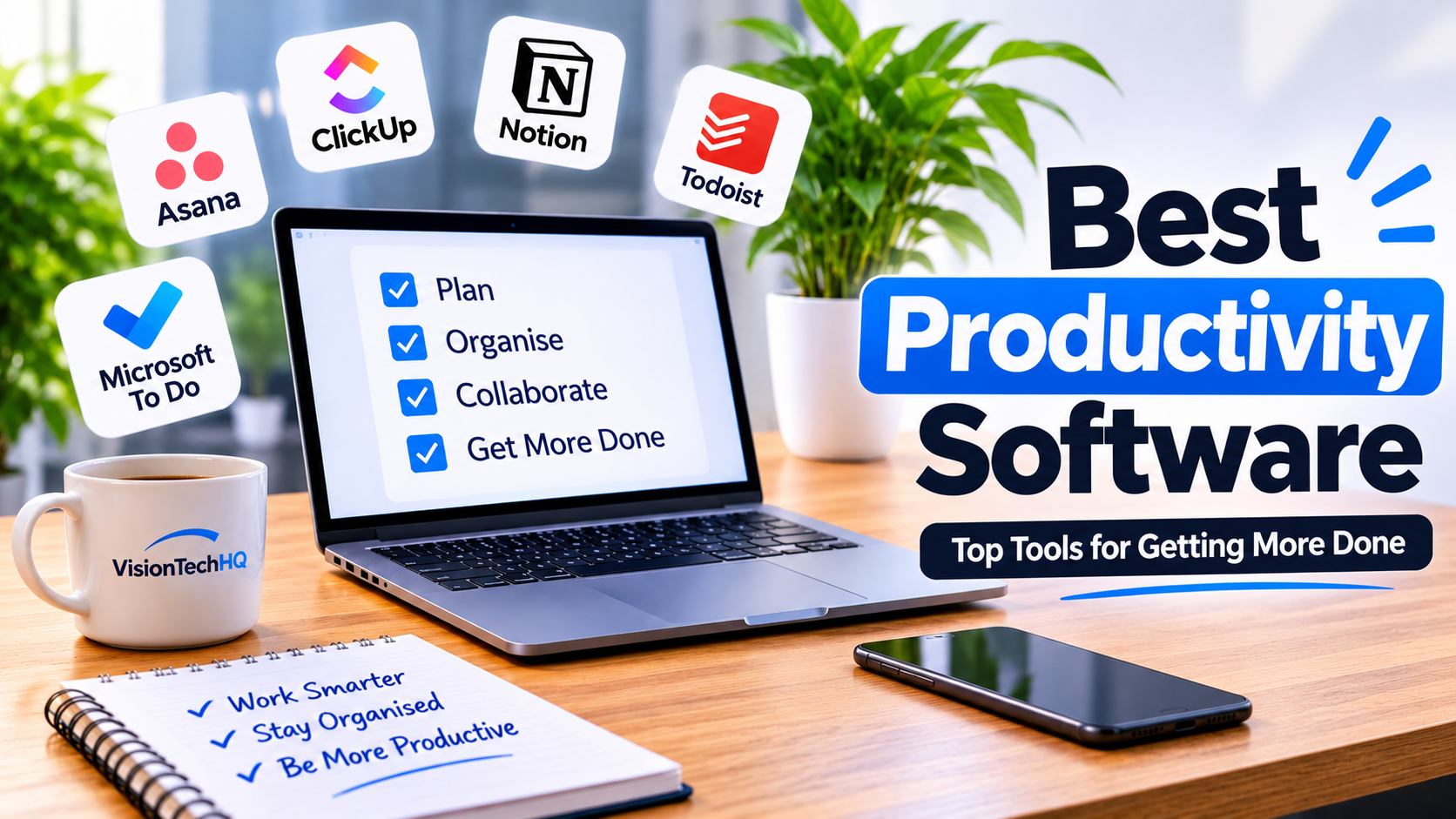
Staying organised can be difficult when you’re juggling deadlines, projects, meetings, notes, and everyday responsibilities. Productivity software can help by bringing these tasks into a more manageable system, making it easier to plan your work and keep track of what needs to be done.
However, not every productivity tool solves the same problem. Some focus on task management and scheduling, while others specialise in note-taking, project planning, collaboration, or bringing several of these functions together in one workspace. Choosing the right software depends on how you work, what you need to organise, and how much complexity you’re willing to manage.
In this guide, we’ll look at some of the best productivity software available in 2026, comparing their main features, practical advantages, limitations, pricing models, and suitability for different users. Whether you’re a student, freelancer, professional, or small business owner, the goal is to help you find a tool that fits your workflow without paying for features you don’t need.
Quick VisionTech Verdict
| Productivity Software | Best For | Overall Assessment |
|---|---|---|
| ClickUp | All-in-one productivity and project management | A feature-rich platform for managing tasks, documents, goals, and team workflows in one workspace. |
| Notion | Notes, documentation, and workspace organisation | A flexible option for users who want to build their own system for managing information and projects. |
| Todoist | Personal task management | A focused task manager for organising daily responsibilities, deadlines, and recurring tasks. |
| Asana | Team project management | Well suited to coordinating responsibilities, tracking project progress, and managing collaborative work. |
| MindManager | Mind mapping and visual planning | Useful for brainstorming, structuring ideas, and turning complex information into visual plans. |
| EndNote | Academic research and referencing | Designed to help researchers and students organise references and manage citations for academic writing. |
| Troop Messenger | Team communication | A business messaging platform for teams that need a dedicated space for workplace communication and collaboration. |
| Microsoft To Do | Everyday task lists | A straightforward option for managing personal tasks, daily priorities, and reminders within Microsoft’s ecosystem. |
Best Overall: ClickUp — a strong candidate for users who want a broad range of task and project management capabilities in one platform.
Best for Personal Productivity: Todoist — a practical choice for people who want to organise their daily workload without adopting a full project management system.
Best for Notes and Organisation: Notion — particularly useful for people who value flexible documentation and customisable workspaces.
Best for Visual Planning: MindManager — a specialist option for people who think and plan using mind maps and diagrams.
Best for Academic Productivity: EndNote — a relevant choice for researchers and students who manage large collections of references.
Best for Team Communication: Troop Messenger — worth considering for organisations that need dedicated workplace messaging.
Best for Simple Task Management: Microsoft To Do — suitable for users who want a relatively straightforward way to organise everyday tasks.
Bottom Line: The best productivity software depends on the problem you’re trying to solve. ClickUp and Asana focus on managing work, Notion combines documentation with flexible organisation, and tools such as Todoist, MindManager, EndNote, Troop Messenger, and Microsoft To Do address more specific productivity needs.
How to Choose the Right Productivity Software
The best productivity software isn’t necessarily the one with the most features. It’s the one that helps you manage your work more effectively without introducing unnecessary complexity.
Before choosing a tool, consider what you actually need it to do. A student managing assignments has different requirements from a project manager coordinating a team, while a researcher may need specialised tools for organising references and citations.
Here are the main factors worth considering before making a decision.
1. Identify Your Main Productivity Needs
Start by identifying the tasks you want to manage. If you mainly need to organise daily responsibilities, a dedicated task manager such as Todoist or Microsoft To Do may be sufficient. If you’re coordinating projects with several people, a platform such as ClickUp or Asana may be more appropriate.
For brainstorming and planning complex ideas, MindManager offers a different approach through visual mind maps. Meanwhile, EndNote is designed for managing references and citations rather than everyday task lists.
Choosing software that matches your actual needs is more useful than paying for a broad set of features you may never use.
2. Consider Ease of Use
A productivity tool should make your workflow easier to manage, not create another system that demands constant attention.
Some applications prioritise simplicity, while others provide extensive customisation, project views, and advanced workflow options. More functionality can be useful, but it may also mean additional setup and a steeper learning curve.
Think about how much time you’re willing to spend configuring your workspace. If you need something you can start using quickly, a focused application may be a better fit than an all-in-one platform.
3. Check Collaboration and Integration Options
If you work with other people, consider whether the software supports the collaboration your workflow requires. Depending on the product, this could include assigning tasks, sharing documents, tracking project progress, or communicating with colleagues.
Integrations matter, too. Software that works with the applications you already use can reduce duplicated work and unnecessary switching between tools. Before committing, check which integrations are available on the plan you intend to use, as some capabilities may require a paid subscription.
4. Understand the Pricing Model
Many productivity applications offer free plans, paid subscriptions, or a combination of both. However, a free plan may impose limits on features, collaboration, storage, or usage.
Compare the limitations of the free version with the features included in paid plans. If you’re choosing software for a team, account for the cost of multiple users rather than considering only the price of one subscription.
It’s also worth considering whether you genuinely need a paid tool. For straightforward task management, a free application may be sufficient. More advanced project coordination or specialised research workflows may justify paying for additional capabilities.
5. Avoid Unnecessary Complexity
Using several productivity applications can be helpful when each has a clear purpose. Problems arise when multiple tools overlap so much that you end up maintaining the same tasks, notes, or project information in several places.
For example, someone who already manages projects and documents effectively in one platform may not need a separate application for every individual task. On the other hand, a researcher may benefit from using a dedicated reference manager alongside a general-purpose task manager.
The goal is to build a manageable workflow, not accumulate as many productivity tools as possible.
6. Consider Your Long-Term Needs
Your requirements may change as your workload grows. A tool that works well for personal tasks may eventually prove insufficient for managing a team or coordinating larger projects.
Before committing, consider whether the software can accommodate your likely needs without forcing you into an unnecessarily expensive plan. Also check its supported operating systems, export options, and ability to work with your existing workflow.
Ultimately, the right choice is the application that solves your current problems while leaving you with a practical path forward as your needs evolve.
Best Productivity Software: Our Top Picks
This is the main section of the buying guide. Rather than treating every product as a full standalone review, we’ll focus on what each tool does well, its practical limitations, and who should consider using it.
1. ClickUp — Best for All-in-One Productivity
ClickUp brings task management, project planning, documents, dashboards, and team collaboration into one platform. Its range of features makes it worth considering for freelancers, businesses, and teams that want to manage several aspects of their work in one place.
What makes it useful
- Organises tasks and projects within a shared workspace.
- Supports different ways of viewing and tracking work.
- Combines documentation and collaboration with project management.
Potential drawbacks
ClickUp’s extensive functionality can make the platform feel complicated for users who only need a basic to-do list. Its free plan also has limitations, including restricted storage, so users should check whether those limits suit their workflow.
Best for: Freelancers, project managers, and teams looking for a central workspace.
2. Notion — Best for Notes and Flexible Workspaces
Notion combines note-taking, documentation, databases, and project organisation in a customisable workspace. It can be useful for people who want to keep research, plans, reference material, and ongoing projects organised together.
What makes it useful
- Provides flexible pages and databases for organising information.
- Supports shared documentation and collaborative work.
- Can be adapted to different personal and professional workflows.
Potential drawbacks
Notion’s flexibility means users may need to spend time designing their workspace before it becomes useful. People who prefer a ready-made, straightforward task manager may find it more involved than necessary.
Best for: Students, writers, freelancers, and teams that manage substantial amounts of information.
3. Todoist — Best for Personal Task Management
Todoist focuses on capturing tasks, setting deadlines, organising projects, and keeping track of everyday responsibilities. It also offers list and board layouts, reminders, and integrations with other tools. Its free plan supports basic task management, while paid plans add capabilities such as expanded project limits and calendar views.
What makes it useful
- Helps organise daily tasks and longer-term responsibilities.
- Supports recurring tasks and reminders.
- Offers a relatively focused alternative to full project management platforms.
Potential drawbacks
Todoist is not intended to replace every aspect of a complex project management system. Users who need extensive resource planning, advanced team reporting, or comprehensive project documentation may need additional software.
Best for: Individuals, students, and professionals who want a manageable daily task system.
4. Asana — Best for Team Project Management
Asana is designed to help teams coordinate projects, assign responsibilities, set deadlines, and monitor progress. It is more suited to structured team workflows than to someone who simply wants to maintain a personal shopping list or daily checklist.
What makes it useful
- Helps teams organise work into projects and tasks.
- Makes responsibilities and deadlines easier to track.
- Supports collaboration and project progress monitoring.
Potential drawbacks
Asana may be more than an individual user needs. Teams should also compare the features available on each plan before committing, particularly if they require advanced reporting or workflow management.
Best for: Teams, project coordinators, and businesses managing shared deadlines.
5. MindManager — Best for Mind Mapping and Visual Planning
MindManager is a visual planning application that helps users organise ideas, build mind maps, create diagrams, and develop plans. It also supports project planning and task management, with capabilities varying by platform and licence.
What makes it useful
- Turns complex ideas into visual structures.
- Supports brainstorming, planning, and organising related information.
- Offers diagramming options beyond traditional mind maps.
Potential drawbacks
MindManager is a specialised tool rather than a simple everyday task manager. Some collaboration features and capabilities depend on the plan, so users should check which version meets their needs.
Best for: Professionals, business planners, students, and people who prefer visual thinking.
6. EndNote — Best for Academic Research and Referencing
EndNote is a reference management application designed to help researchers organise academic sources and manage citations when writing papers, dissertations, and other research documents.
What makes it useful
- Helps maintain an organised library of research references.
- Supports citation and bibliography workflows.
- Can be useful for managing sources across larger research projects.
Potential drawbacks
EndNote serves a specific purpose. It is not a substitute for general task management, team communication, or project planning software. New users may also need time to learn its referencing workflow.
Best for: Researchers, postgraduate students, academics, and people regularly producing citation-heavy documents.
7. Troop Messenger — Best for Workplace Communication
Troop Messenger is a workplace messaging platform that supports one-to-one and group conversations, file sharing, and audio and video communication. Its plans vary in the collaboration and administration features they provide.
What makes it useful
- Provides a dedicated space for workplace conversations.
- Supports group discussions and file sharing.
- Offers additional communication and administration features on higher-tier plans.
Potential drawbacks
A messaging platform alone will not replace a dedicated project management system. Organisations should also assess whether its integrations, administrative controls, and deployment options fit their existing environment.
Best for: Businesses and teams that need dedicated workplace messaging and collaboration.
8. Microsoft To Do — Best for Simple Everyday Task Management
Microsoft To Do is a straightforward task-management option for people who want to organise daily responsibilities, create lists, and keep track of tasks. Its integration with Microsoft’s ecosystem can make it particularly convenient for users already relying on Microsoft services.
What makes it useful
- Keeps everyday tasks and lists organised.
- Provides a simpler alternative to more complex productivity platforms.
- Can complement other Microsoft applications.
Potential drawbacks
Microsoft To Do is intentionally focused on personal task organisation. Users who need advanced project dependencies, detailed resource management, or extensive team reporting will likely need a more specialised platform.
Best for: Individuals, students, and professionals who want a simple task list without unnecessary complexity.
Which productivity software should you choose?
The right choice depends on your priorities. ClickUp and Asana are worth considering for managing projects, Notion suits information-heavy workflows, and Todoist is a practical choice for everyday tasks. MindManager and EndNote address more specialised needs, while Troop Messenger focuses on team communication and Microsoft To Do keeps personal task management simple.
Before committing to a paid plan, review the current features, limitations, and pricing on each product’s official website.
Free vs Paid Productivity Software: Is Upgrading Worth It?
Many productivity applications offer free plans, but the features and limitations vary considerably. Some free versions are sufficient for everyday use, while others restrict capabilities that become important when managing larger projects or working with a team.
The decision to upgrade should depend on what you need from the software, not simply on how many features a paid plan offers.
When Free Productivity Software Is Enough
A free plan can be a sensible choice if you mainly need to organise personal tasks, maintain notes, or manage a relatively simple workflow.
For example, Microsoft To Do may be sufficient for someone who wants to keep track of daily responsibilities. Todoist’s free plan can also suit users with straightforward task-management needs, while Notion offers a way to organise notes and information without necessarily committing to a paid subscription.
Free software is particularly useful if you’re a student, a freelancer just starting out, or someone who wants to establish better organisational habits before spending money on additional tools.
However, always check the current plan restrictions. A free plan may limit collaboration, storage, automation, project capacity, or access to advanced features.
When a Paid Productivity Plan Makes Sense
Paying for productivity software becomes more worthwhile when the free version starts getting in the way of your work.
You might benefit from upgrading if you need:
- More collaboration options: Your team needs additional access controls, shared workspaces, or administrative capabilities.
- Advanced project management: You need more sophisticated ways to track progress, manage dependencies, or coordinate complex projects.
- Automation: You want to reduce repetitive tasks through automated workflows.
- Additional capacity: Your projects, files, or workspace requirements exceed the limits of the free plan.
- Specialised functionality: Your work depends on features that are only included in a paid licence.
Before upgrading, identify the specific limitation you’re trying to overcome. If the paid features won’t meaningfully improve your workflow, the extra expense may not be justified.
Are Paid Productivity Tools Better Than Free Alternatives?
Not necessarily. A paid application may offer more functionality, but additional features don’t automatically make it the better choice for every user.
A simple task manager can be more useful than a feature-heavy project management platform if all you need is a reliable way to track deadlines. Likewise, a specialised application such as EndNote may be worth paying for if its reference-management capabilities meet a genuine academic or professional need.
The important distinction is between paying for features you will actually use and paying for capabilities that add little value to your work.
What About Subscription Costs?
Productivity software may be offered through monthly or annual subscriptions, one-time licences, or different pricing arrangements depending on the product. Some applications also offer free versions alongside paid plans.
When comparing options, check whether the advertised plan is priced per user, whether annual billing is required for the quoted rate, and whether essential features are restricted to higher tiers. For team software, calculate the cost for everyone who needs access.
Pricing and plan inclusions can change, so consult each provider’s official pricing page before purchasing.
Our Recommendation
Start with the free version when it covers your needs. Use it to establish your workflow, identify any limitations, and determine whether additional features would genuinely save time or improve collaboration.
Upgrade when you can point to a specific benefit that justifies the cost. Productivity software should make your work easier to manage, not become another expense without a clear purpose.
Common Mistakes to Avoid When Choosing Productivity Software
Choosing productivity software can make everyday work easier, but the wrong choice can introduce extra steps, unnecessary costs, and more complicated workflows. Before settling on an application, it’s worth avoiding a few common mistakes.
1. Choosing Software With More Features Than You Need
An application with dozens of features may look appealing, but you won’t necessarily benefit from all of them.
For example, someone who wants to organise daily tasks may not need a comprehensive project management platform with advanced reporting, automation, and team administration tools. A simpler option such as Microsoft To Do or Todoist may be more appropriate.
Start with the problem you’re trying to solve and choose software that addresses it without adding unnecessary complexity.
2. Paying for a Subscription Too Early
It’s easy to assume that a paid plan will provide a better experience, but upgrading before understanding your requirements can waste money.
Try the available free version where practical. Identify its limitations and check whether the paid features address problems you’re actually experiencing.
If the free plan already supports your workflow, there may be no reason to upgrade.
3. Ignoring the Learning Curve
Some productivity tools are straightforward to use, while others require time to configure and learn.
A highly customisable platform such as Notion can be useful for building a tailored workspace, but setting up that workspace takes effort. Similarly, feature-rich project management applications can require more initial configuration than a basic task list.
Consider how much time you’re willing to invest in setup and whether the additional capabilities justify that effort.
4. Using Too Many Applications at Once
Using separate applications for tasks, notes, projects, communication, and scheduling isn’t necessarily a problem. However, overlapping tools can create confusion if you repeatedly enter the same information in different places.
For example, maintaining project tasks in several applications can make it harder to determine which list is up to date.
Choose a primary place for each type of information. Add specialised tools only when they serve a clear purpose that your existing setup doesn’t cover.
5. Overlooking Compatibility and Integrations
Before adopting a tool, check whether it works with your devices, operating systems, and existing applications.
This is particularly important for teams that depend on shared documents, calendars, messaging systems, or other business software. A tool may offer useful features but still be inconvenient if it doesn’t fit the team’s existing workflow.
Also check whether the integrations you need are included in your intended plan.
6. Assuming Every Tool Suits Every User
Productivity software is designed around different needs. A reference manager such as EndNote is useful for organising academic sources, but it isn’t a replacement for a general task manager. MindManager is suited to visual planning, while Troop Messenger focuses on workplace communication.
Comparing these tools as though they all perform the same job can lead to the wrong decision.
Identify your main requirement first, then compare applications that genuinely address it.
7. Forgetting About Long-Term Costs
A subscription that seems affordable for one person can become a significant expense when several team members need access. Costs may also increase when you need more storage, additional features, or a higher-tier plan.
Review the current pricing structure and consider the features you’ll need over time. For business use, calculate the total cost for the intended number of users rather than looking only at the entry-level plan.
The Bottom Line
The best productivity setup isn’t necessarily the most expensive or the most sophisticated. It’s the one that fits your working habits, solves a real problem, and remains manageable over time. Take the time to assess your needs before committing to a tool or subscription.
Final VisionTech HQ Verdict: Which Productivity Software Is Worth Using in 2026?
The best productivity software in 2026 depends on what you need to accomplish. Some applications focus on managing everyday tasks, while others are designed for team projects, visual planning, academic research, or workplace communication. Choosing the right one means understanding those differences rather than automatically opting for the platform with the longest feature list.
ClickUp is our leading recommendation for users seeking an all-in-one productivity platform. Its combination of task management, project planning, documentation, and collaboration makes it a strong option for people who want to organise multiple aspects of their work in one place. However, its extensive functionality may be unnecessary for users who only need a simple task list.
For personal productivity, Todoist is worth considering because its focus on task organisation makes it suitable for managing everyday responsibilities. Notion is a strong alternative for people who want a flexible workspace for notes, documentation, and project information, although setting up a personalised system can take time.
Other tools are better suited to specific needs. Asana is worth considering for structured team project management, while MindManager is useful for visual brainstorming and planning. EndNote addresses academic referencing, Troop Messenger focuses on workplace communication, and Microsoft To Do offers a straightforward approach to managing personal tasks.
Should You Pay for Productivity Software?
Not necessarily. A free plan may provide everything you need, particularly if you’re managing personal tasks or maintaining a simple workflow. Paid plans become more attractive when you require additional collaboration features, greater capacity, automation, or specialised functionality.
Before subscribing, check the current plan limitations and compare the cost against the practical benefits you’ll receive. Avoid paying for features that don’t solve a genuine problem.
Our Final Recommendation
For readers who want a broad set of productivity tools, start by considering ClickUp. If your needs are more specific, choose software that matches the job rather than adopting an all-in-one platform by default.
Ultimately, productivity software should help you organise your work, reduce unnecessary friction, and manage your responsibilities more effectively. The best choice is the one that supports your actual workflow without adding needless complexity or expense.
Frequently Asked Questions About Productivity Software
1. What is the best productivity software in 2026?
The best option depends on your needs. ClickUp is worth considering for all-in-one task and project management, Todoist for personal tasks, Notion for notes and flexible workspaces, and Asana for team project coordination.
2. What is the best free productivity software?
Microsoft To Do is a useful option for basic personal task management. Todoist and Notion also offer free plans, although their features and limitations differ. Check each provider’s current terms to determine which free version best suits your needs.
3. Is paid productivity software worth it?
Paid productivity software can be worthwhile if it provides features that meaningfully improve your workflow. Advanced collaboration, automation, additional capacity, and specialised capabilities may justify the expense. However, if a free plan meets your requirements, upgrading may be unnecessary.
4. Which productivity software is best for students?
Microsoft To Do and Todoist can help students manage assignments, deadlines, and daily responsibilities. Notion is another option for organising notes and study materials, while EndNote is particularly relevant to students conducting academic research that requires reference management.
5. Which productivity software is best for businesses?
ClickUp and Asana are worth considering for businesses that need to coordinate projects and track responsibilities. The best choice depends on the size of the team, the complexity of its workflows, its existing software, and its budget.
6. What is the difference between task management and project management software?
Task management software focuses on creating, organising, and tracking individual tasks and deadlines. Project management software generally offers broader capabilities for coordinating multiple tasks, people, timelines, and project milestones. Some applications support both.
7. Can productivity software improve productivity?
It can help users organise responsibilities, track deadlines, coordinate work, and reduce the effort involved in managing information. However, software alone doesn’t guarantee better productivity. Its effectiveness depends on how well it fits the user’s workflow and how consistently it is used.
8. Should I use one productivity app or several?
One application may be sufficient if it covers your main needs. Using several can make sense when each serves a distinct purpose, such as combining a task manager with a specialised academic reference manager. Avoid unnecessary overlap that creates duplicate work.
9. How do I choose the right productivity software?
Start by identifying the tasks you need to manage, then compare suitable applications based on ease of use, features, compatibility, collaboration options, and cost. Where possible, try a free plan or trial before committing to a paid subscription.
10. Is productivity software safe to use?
Safety depends on the specific application, its security practices, and how you use it. Before storing sensitive information, review the provider’s security documentation, access controls, privacy policy, and data-handling practices. Use strong authentication where available and avoid assuming that every productivity tool offers the same level of protection.
Leave a Reply