
WinRAR has been one of the most recognizable file compression and archiving tools for Windows for decades. It can create and extract compressed archives, including its own RAR format, while also supporting several other common archive formats.
But with Windows already offering built-in support for compressed files and plenty of free alternatives available, there is a reasonable question to ask in 2026: is WinRAR still worth installing and paying for?
In this review, we’ll look at WinRAR’s features, usability, performance, pricing, limitations, and overall value to determine who it makes sense for today.
What Is WinRAR?
WinRAR is a file compression and archiving utility developed by RARLAB. It is primarily used to create, open, and manage compressed archive files, making it easier to store, transfer, and organize multiple files in a single archive.
The software is best known for its RAR archive format, but WinRAR can also work with several other archive formats. It can extract files from existing archives and create compressed archives using RAR and ZIP formats.
One of the main reasons people use software like WinRAR is convenience. Instead of sending or storing dozens of individual files, users can combine them into a single archive and potentially reduce the amount of storage space required. Archives can also be split into multiple parts when large files need to be transferred or stored separately.
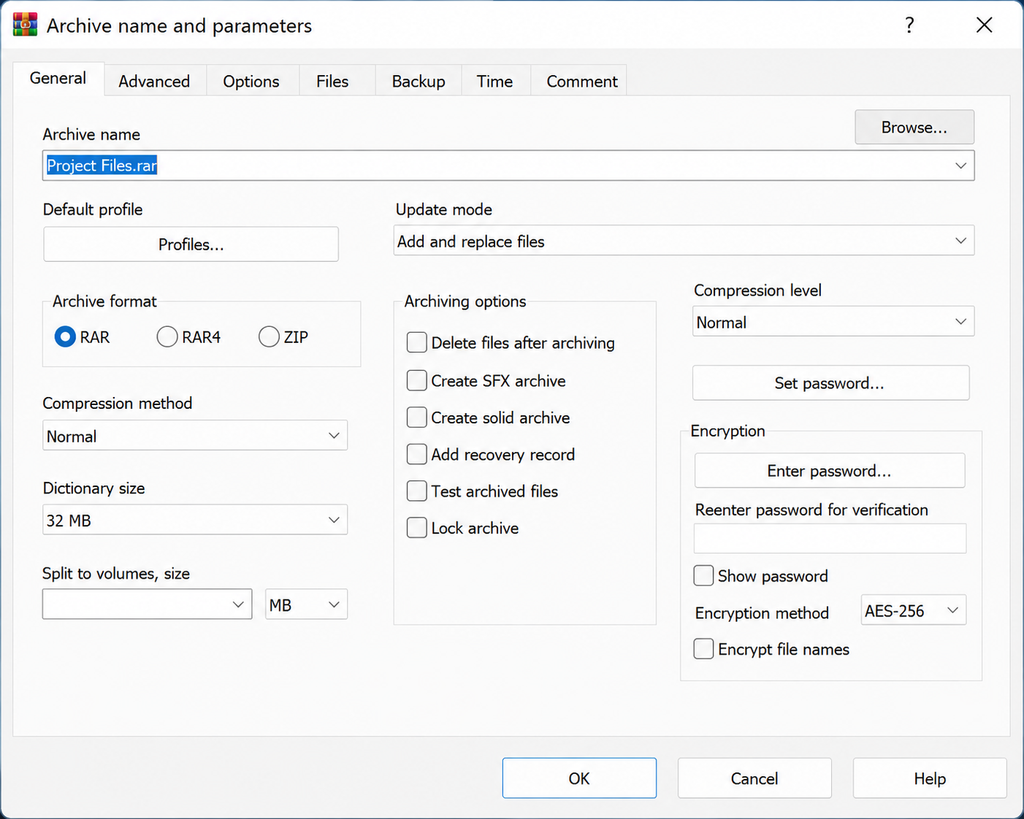
WinRAR also includes features aimed at more advanced users, including password protection and encryption, recovery records, archive splitting, and options for controlling compression. These tools can be useful when managing large collections of files or when an archive needs additional protection.
The software is available for Windows, with RARLAB also providing versions for other platforms under different names. For everyday Windows users, however, WinRAR remains primarily known as a desktop archiving utility.
Its biggest competition has changed over the years. Windows itself can handle some common compressed files without additional software, while free utilities such as 7-Zip provide many of the same basic functions. That means WinRAR has to offer enough additional functionality and convenience to justify using it over those alternatives.
Key Features of WinRAR
WinRAR has been around for a long time, but its feature set goes beyond simply creating and extracting ZIP files. Its main strengths are its support for the RAR format, archive management tools, encryption, recovery features, and control over how archives are created.
RAR and ZIP Compression
WinRAR can create both RAR and ZIP archives, giving users a choice between the two formats. It can also extract a much wider range of archive formats, including RAR, ZIP, 7Z, TAR, GZ, ISO, and others.
This broad format support is useful if you regularly receive compressed files from different sources. Instead of installing separate utilities for different archive types, WinRAR can handle many of them from one application.
Limitation: Windows can already handle some common archive formats without additional software, so basic ZIP extraction alone isn’t a particularly strong reason to install WinRAR.
RAR5 Compression
One of WinRAR’s biggest distinctions is its native RAR format. RAR5 provides features designed for efficient compression and archive management, including support for large archives and recovery records.
WinRAR also allows users to adjust compression settings rather than simply relying on a single default option. This gives more control to users who care about archive size and compression behaviour.
AES-256 Encryption
WinRAR supports password-protected archives using AES-256 encryption. This can be useful when an archive contains private or sensitive files that should not be accessible to anyone who obtains the archive itself.
The encryption feature is particularly useful when transferring files through email, cloud storage, removable drives, or other locations where the archive could potentially be accessed by someone else.
Important: Encryption does not make the contents automatically safe from every threat. Users still need to choose a strong password and obtain WinRAR from a legitimate source.
Recovery Records and Archive Repair
WinRAR includes recovery features designed to help recover data from damaged archives. Recovery records can provide additional information that may allow parts of a damaged archive to be reconstructed. The software also includes an archive repair function.
This is one of the more useful features for people who store important archives for long periods or transfer large archives between devices.
Limitation: Recovery features are not a guarantee that every damaged archive can be recovered. Their effectiveness depends on the nature and extent of the damage.
Split Archives
WinRAR can divide an archive into multiple smaller volumes. This can be useful when an archive is too large to conveniently store or transfer as a single file.
For example, a large collection of files can be divided into several archive parts rather than being kept as one large archive.
Self-Extracting Archives
WinRAR can create self-extracting archives, allowing an archive to be packaged as an executable file. This can make it easier to distribute compressed files to people who may not have an archive utility installed.
However, executable files should always be treated carefully, particularly when they come from an unknown source.
File and Archive Management
WinRAR provides more than basic compression and extraction. Its interface allows users to browse archive contents, add or remove files, extract selected items, and manage archives from within the application.
It also integrates with Windows Explorer, allowing common archive operations to be accessed through the right-click context menu. WinRAR supports drag-and-drop operations as well.
This integration is important because many users won’t need to open the full WinRAR interface for simple tasks. They can interact with archives directly from Windows.
Archive Password Management
WinRAR includes a password manager designed to help users keep track of passwords used for protected archives.
This can be convenient for people who regularly create multiple password-protected archives, although users should still follow sensible password-management practices rather than relying on a single password for everything.
Backup and Archive Options
WinRAR also includes options aimed at backup and file management, including time-stamped files and previous-version retention features.
These options can be useful for users who want more control over how files are added to or updated within archives.
However, WinRAR should not automatically be treated as a full replacement for dedicated backup software. Its archive and backup-related features serve a different purpose from a complete system-backup solution.
Pros and Cons of WinRAR
Pros
- Strong archive and compression features — WinRAR provides extensive control over archive creation, including RAR compression, ZIP support, split archives, recovery records, and self-extracting archives.
- Supports many archive formats — It can extract a wide range of formats, making it useful when you regularly work with archives from different sources.
- AES-256 encryption — Password-protected archives can use AES-256 encryption, which is useful for protecting sensitive files.
- Useful recovery features — Recovery records and archive repair tools can provide an additional layer of protection against damaged archives.
- No recurring subscription for the standard license — WinRAR uses a perpetual licensing model rather than requiring a monthly or annual subscription for the software license itself.
- Long-established Windows integration — Windows Explorer integration and drag-and-drop support make common compression and extraction tasks straightforward.
Cons
- There are strong free alternatives — Users who only need basic compression and extraction may have little reason to pay for WinRAR when free tools such as 7-Zip are available.
- Windows already handles common archive tasks — For simple ZIP files, many users can perform basic compression and extraction without installing additional software.
- The interface feels dated — WinRAR’s traditional desktop interface is functional, but it does not have the modern appearance found in many newer Windows applications.
- The paid license is not essential for everyone — The software’s more advanced features can justify the purchase for some users, but casual users may find the free alternatives sufficient.
- Some advanced features require understanding — Options such as compression settings, recovery records, archive volumes, and encryption give experienced users useful control, but they can make WinRAR feel more complicated to beginners.
- The license and updates can be confusing — WinRAR licenses are perpetual, but RARLAB distinguishes the lifetime software license from its Support & Maintenance arrangement for ongoing updates. Users should understand what is included before purchasing.
Overall Takeaway
WinRAR’s strengths are most apparent when you actually need its more advanced archive-management capabilities. If you simply want to unzip files or create an occasional ZIP archive, its advantages are much harder to justify over free alternatives.
That distinction will be important when we get to the Pricing and Final VisionTech Verdict sections.
Performance & User Experience
WinRAR has a fairly straightforward purpose: compress files, extract archives, and manage the contents of those archives. Its interface has remained familiar over the years, which can be an advantage for experienced users, although newcomers may find the number of available options slightly overwhelming.
Performance
WinRAR’s performance depends heavily on the type of files being compressed, the selected compression settings, the amount of data involved, and the hardware being used. Because of that, there is no single compression speed that can accurately represent the software for every user.
The current WinRAR 7.x series includes several performance-related improvements. For example, WinRAR 7.10 introduced support for large memory pages, which can improve archiving performance and, in some cases, extraction speed when certain conditions are met. The software can also use multiple processor groups for RAR compression on systems with more than 64 logical processors.
That does not mean every user will notice a major speed improvement. On an ordinary home computer, the difference will depend on the workload and hardware.
WinRAR also includes its own benchmark functionality, allowing users to measure compression-related performance on their own systems.
VisionTechHQ assessment: WinRAR provides plenty of performance controls for users who care about compression speed and archive size, but it would be misleading to claim a specific speed advantage without controlled testing.
Ease of Use
For basic tasks, WinRAR is relatively easy to operate. Users can open an archive, select files, extract them, or create a new archive from Windows Explorer.
Its Windows integration is particularly useful. Common compression and extraction commands can be accessed through the Windows context menu, while drag-and-drop is also supported.
The basic workflow is therefore simple:
- Select the files or archive.
- Right-click and choose the appropriate WinRAR option.
- Adjust settings if necessary.
- Start the compression or extraction process.
Beginners can stick with the default settings, while more experienced users can explore the extensive configuration options.
Interface
WinRAR’s interface is functional rather than modern-looking. It provides direct access to archive contents and a large number of configuration options, which is useful for advanced users but can make the application feel more complicated than simpler archive utilities.
The software has received interface improvements in recent releases. WinRAR 7.10 introduced separate Interface and System settings pages, vertical navigation within those settings, and support for dark and light interface modes.
That said, WinRAR still has the appearance of a traditional Windows desktop utility. Users looking for a highly modern interface may prefer newer alternatives.
Windows 11 Integration
WinRAR is compatible with Windows 11. RARLAB specifically confirms support for Windows 11 installations and in-place upgrades, while newer versions also integrate with the Windows 11 context-menu system.
This makes WinRAR a practical option for current Windows users rather than software that has simply been kept alive for older versions of Windows.
Reliability and Updates
WinRAR continues to receive regular updates. Version 7.23, released in June 2026, included security fixes for vulnerabilities affecting archive processing and updated the 7-Zip extraction library used by WinRAR.
This is important because archive utilities regularly handle files downloaded from the internet, making security updates particularly relevant.
Recent releases have also addressed stability and archive-handling issues. For example, WinRAR 7.22 finalized a fix related to deleting files from solid archives, while version 7.21 included improvements to archive recognition and file-list sorting.
Overall User Experience
WinRAR’s user experience is best described as feature-rich and practical rather than modern and minimal.
For someone who regularly works with RAR archives, large compressed files, password-protected archives, recovery records, or advanced compression settings, the extensive controls can be valuable.
For someone who only occasionally needs to open a ZIP file, however, WinRAR can feel like more software than they actually need.
WinRAR Pricing
WinRAR uses a try-before-you-buy model rather than a traditional monthly or annual subscription. Users can download and evaluate the software before deciding whether to purchase a license. RARLAB currently provides a 40-day evaluation period.
Perpetual License
The main WinRAR license is perpetual, meaning it is not a recurring subscription. Once purchased, the license remains valid for the lifetime of the license.
The standard license is intended for use on one computer per licensed user, while RARLAB also offers multi-user licensing for businesses and organisations that need several installations. Volume licensing is available for larger numbers of users.
We deliberately don’t list an exact price here because software pricing can change, and regional taxes, currencies, and licensing requirements can also affect the final amount.
For the latest WinRAR pricing and licensing options, check the official website before purchasing.
Is WinRAR Good Value?
Whether WinRAR represents good value depends heavily on how you use it.
For someone who occasionally extracts a ZIP file, paying for WinRAR is difficult to justify when Windows already handles many basic archive tasks and free alternatives are available.
For users who regularly work with RAR archives or need features such as advanced compression controls, encrypted archives, recovery records, split archives, and self-extracting archives, the perpetual license makes the proposition more reasonable. You’re paying once rather than committing to an ongoing software subscription.
Businesses may also benefit from the availability of volume licensing, particularly when WinRAR needs to be deployed across multiple computers.
VisionTechHQ Pricing Verdict
WinRAR’s one-time licensing model is one of its stronger selling points, particularly for users who regularly need its more advanced features. However, casual users should consider whether they actually need those features before paying for an archiving utility when free options exist.
Check WinRAR’s current plans and licensing options on the official website before making a purchase.
Who Should Use WinRAR?
WinRAR is useful for more than just opening compressed files, but that does not mean everyone needs it. Whether it is worth installing depends largely on how often you work with archives and how much control you want over compression, encryption, and archive management.
Beginners and Home Users
WinRAR can be a good choice for beginners who regularly download compressed files or need a straightforward way to create and extract archives.
Basic tasks are relatively simple, and users can rely on the default settings without having to understand every compression option.
However, casual users who only occasionally open ZIP files may not need WinRAR at all. Windows already provides built-in support for common archive operations, while free third-party utilities can cover many of the same basic needs.
Verdict: Good for beginners who regularly work with archives, but unnecessary for very occasional use.
Users Who Regularly Work With RAR Files
This is where WinRAR makes the most sense.
WinRAR is designed specifically around the RAR format and provides tools for creating and managing RAR archives, including features such as recovery records, multivolume archives, and advanced compression options.
If you regularly receive or create RAR archives, using the software that natively supports the format can be more convenient than relying on a utility intended primarily for other archive types.
Verdict: One of the strongest use cases for WinRAR.
Users Who Need Password-Protected Archives
WinRAR is also worth considering if you frequently need to package sensitive files into password-protected archives.
Its AES-256 encryption support allows users to protect archive contents, while the software also provides options for managing encrypted archives.
This can be useful when transferring confidential documents or storing files that should not be immediately accessible to anyone who obtains the archive.
Verdict: A good fit for users who regularly need encrypted archives.
Advanced Users
Advanced users are likely to get more out of WinRAR than casual users.
The software provides detailed control over compression, archive volumes, recovery records, self-extracting archives, and other archive-management functions.
There is also a command-line version of the RAR software for users who prefer automation and scripting, although the full WinRAR graphical application is primarily associated with Windows.
Verdict: Well suited to users who want more control than basic Windows archive tools provide.
Small Businesses and Professionals
WinRAR can also make sense in professional environments where employees regularly exchange, archive, encrypt, or manage large collections of files.
Its licensing model includes options for multiple users, making it possible for organisations to license the software across several computers rather than purchasing individual consumer licenses for every employee.
That said, businesses should consider their specific requirements before standardising on WinRAR. If the primary requirement is simply opening ZIP files, a free solution may be sufficient.
Verdict: Worth considering when advanced archive features are actually needed across a team.
Who May Be Better Off With an Alternative?
WinRAR is not automatically the best choice for every Windows user.
You may be better served by a free alternative if you:
- Only need basic ZIP compression and extraction.
- Do not create RAR archives.
- Rarely work with compressed files.
- Do not need advanced archive recovery or encryption features.
- Want a completely free archiving utility.
For those users, alternatives such as 7-Zip can provide many of the core functions without requiring a paid license.
Bottom Line
WinRAR makes the most sense for users who regularly work with RAR archives or need advanced compression, encryption, recovery, and archive-management features.
For someone who simply needs to unzip the occasional downloaded file, however, paying for WinRAR is much harder to justify.
Final VisionTechHQ Verdict
WinRAR is still a capable and feature-rich archiving utility in 2026, but whether it is worth paying for depends heavily on what you actually need from an archive manager.
Its biggest strengths are its strong support for the RAR format, extensive compression and archive-management options, AES-256 encryption, recovery features, archive splitting, and Windows integration. It is also still actively maintained, with WinRAR 7.23 addressing security vulnerabilities and other issues in the latest release.
The biggest problem is that many users simply do not need all of that functionality.
If you only occasionally download a ZIP file, extract its contents, or create a basic compressed archive, Windows’ built-in tools and free alternatives can handle those tasks without requiring a paid WinRAR license.
WinRAR becomes much easier to justify if you regularly work with RAR archives, need more control over compression, create encrypted archives, use recovery records, split large archives into volumes, or simply prefer WinRAR’s workflow.
Who Should Use WinRAR?
We recommend WinRAR for:
- Users who regularly create or extract RAR archives.
- Advanced users who want detailed compression and archive-management controls.
- Users who need encrypted archives and additional recovery options.
- Professionals who frequently work with large collections of compressed files.
- Businesses that need a dedicated archiving utility with multi-user licensing options.
Who Should Avoid WinRAR?
You probably don’t need WinRAR if:
- You only work with ZIP files occasionally.
- You want a completely free archiving solution.
- You have no use for advanced compression or archive-management features.
- Windows’ built-in archive support already handles everything you need.
Is WinRAR Worth It?
For the right user, yes. For everyone else, not necessarily.
WinRAR remains a polished and capable archive utility, and its long list of advanced features gives it a legitimate advantage over basic compression tools. However, its paid license is harder to justify when free alternatives can handle many everyday archive tasks.
The fact that WinRAR uses a perpetual licensing model rather than a recurring subscription also works in its favour. But before purchasing, casual users should consider whether they actually need the additional functionality.
VisionTechHQ Rating
Overall Rating: ★★★★☆ 4/5
Best For: Users who regularly work with RAR archives and need advanced compression, encryption, recovery, and archive-management features.
Bottom Line: WinRAR remains a powerful and well-maintained archiving tool, but its paid license makes the most sense for users who actually need its advanced capabilities rather than those looking for basic ZIP support.
Our recommendation: If WinRAR fits your workflow, it’s still a worthwhile utility in 2026. If your needs are limited to basic compression and extraction, try a free alternative first.
Frequently Asked Questions About WinRAR
Is WinRAR safe to use?
Yes. WinRAR is a legitimate archiving utility developed by RARLAB and continues to receive updates. The current official release listed by RARLAB is WinRAR 7.23. As with any software, it is important to download WinRAR from a legitimate source and keep it updated. Official WinRAR website
Is WinRAR free?
WinRAR can be downloaded and evaluated before purchasing a license. However, the full software is commercial rather than permanently free. Users who only need basic archive functions may want to consider free alternatives before purchasing.
Is WinRAR worth paying for in 2026?
It depends on your needs. WinRAR is easier to justify if you regularly work with RAR archives or need features such as advanced compression controls, encrypted archives, recovery records, and split archives. If you only occasionally create or extract ZIP files, a free alternative may be enough.
Does WinRAR work with Windows 11?
Yes. WinRAR is compatible with Windows 11, as well as Windows 10. RARLAB continues to provide current Windows releases, including WinRAR 7.23.
What file formats does WinRAR support?
WinRAR can create RAR and ZIP archives and can extract a broad range of archive formats, including RAR, ZIP, 7-Zip, TAR, GZIP, ISO, CAB, and several others.
Does WinRAR have encryption?
Yes. WinRAR supports password-protected archives using AES-256 encryption. This can be useful when storing or transferring sensitive files.
Is 7-Zip better than WinRAR?
Not necessarily. 7-Zip is a strong free alternative and can be the better choice for users who don’t want to pay for an archiving utility. WinRAR, however, offers its own combination of RAR support, archive-management features, recovery options, and other tools.
The better option ultimately depends on which features you need and whether you are willing to pay for them.
Does WinRAR compress files better than ZIP?
RAR and ZIP use different compression technologies and settings, so there is no universal result for every type of file. WinRAR gives users additional control over RAR compression, but the amount of space saved depends on the files being compressed and the settings used.
Should I use WinRAR instead of Windows’ built-in compression?
If you only need basic ZIP compression and extraction, Windows may be all you need. WinRAR becomes more useful when you need features that go beyond basic archive handling, such as RAR creation, advanced compression settings, encrypted archives, recovery records, or archive splitting.
Is WinRAR still relevant in 2026?
Yes, although it is no longer essential for every Windows user. Free alternatives and built-in Windows functionality cover many basic compression tasks, but WinRAR remains relevant for users who need its more advanced archive-management capabilities and RAR support.
Leave a Reply