
When it comes to compressing and extracting files on Windows, WinRAR and WinZip are two of the longest-running names in the category. Both can create and open compressed archives, protect files with encryption, and make it easier to store or share large collections of data. However, they take somewhat different approaches to file management.
WinRAR is closely associated with its RAR format and focuses heavily on archiving, compression, encryption, recovery features, and advanced archive management. WinZip, meanwhile, has expanded beyond traditional ZIP compression with features for cloud storage, file sharing, backups, PDF tools, and broader file-management workflows.
So which one makes more sense in 2026? In this WinRAR vs WinZip comparison, we’ll look at their features, usability, performance considerations, pricing models, security options, and overall value to help you understand which software better fits different types of users.
Quick VisionTech Verdict
| Category | WinRAR | WinZip |
|---|---|---|
| Reliability | ★★★★★ | ★★★★★ |
| Ease of Use | ★★★★☆ | ★★★★★ |
| Features | ★★★★★ | ★★★★★ |
| Compression & Archiving | ★★★★★ | ★★★★☆ |
| File Sharing & Cloud Tools | ★★★☆☆ | ★★★★★ |
| Value for Money | ★★★★★ | ★★★★☆ |
| Overall Rating | ★★★★½ | ★★★★½ |
Best For:
WinRAR: Users who primarily want powerful archiving, compression, and archive-management features without needing a large collection of additional productivity tools.
WinZip: Users who want compression alongside cloud integration, file sharing, encryption, and additional file-management and productivity features.
Bottom Line:
WinRAR and WinZip are both capable compression tools, but they are aimed at slightly different types of users: WinRAR keeps its focus on archiving, while WinZip has expanded into a broader file-management and sharing suite.
What Are WinRAR and WinZip?
What Is WinRAR?
WinRAR is a file archiving and compression utility developed by RARLAB. It is primarily designed to create, open, and manage compressed archives, including RAR and ZIP files. It also supports a wide range of other archive formats for extraction. For a deeper look at its features, strengths, weaknesses, and overall usability, see our full WinRAR review.
One of WinRAR’s distinguishing features is its native support for creating RAR archives. It also includes tools for splitting archives into multiple volumes, encrypting archives with passwords, creating self-extracting archives, and adding recovery records that can help repair certain types of damaged archives.
WinRAR is available for Windows and is also offered for other platforms through RARLAB’s products and tools. For everyday Windows users, however, its main purpose remains straightforward: compress files to reduce their size or package multiple files into a single archive, then extract those files when needed.
What Is WinZip?
WinZip is a file compression and file-management application developed by WinZip Computing. Like WinRAR, it can create and extract compressed archives and supports common formats such as ZIP and RAR. You can also read our full WinZip review for a more detailed look at the software.
Over time, WinZip has expanded beyond traditional compression. Its current feature set includes tools for file sharing, cloud integration, encryption, PDF management, and other file-related tasks. This makes it more of a broader file-management suite than a compression utility alone.
For someone who simply needs to create or extract ZIP files, many of WinZip’s additional tools may not be necessary. However, users who regularly work with cloud services, file sharing, encryption, or PDF files may find the wider feature set more relevant.
WinRAR vs WinZip: What’s the Main Difference?
The biggest difference is their overall focus.
WinRAR is more specialized around archiving and compression, particularly when working with RAR archives and advanced archive-management features.
WinZip takes a broader approach, combining compression with file sharing, cloud services, encryption, PDF tools, and other file-management capabilities.
That does not automatically make one better than the other. The more useful choice depends on whether you primarily need a dedicated archive utility or want additional file-management tools bundled into the same application.
WinRAR vs WinZip: Compression & Archive Formats
At their core, both WinRAR and WinZip are designed to make working with compressed files easier. You can use either application to compress files and folders into archives, extract existing archives, and manage the contents of those archives without manually handling each file.
The difference becomes clearer when you look at the formats they are designed around.
WinRAR
WinRAR is particularly closely associated with the RAR format, which is its native archive format. It can also create ZIP archives and extract a broad range of other archive types.
For users who regularly work with RAR files, WinRAR has an obvious advantage in terms of familiarity and control. It supports features such as splitting archives into multiple volumes, creating self-extracting archives, and adding recovery records to RAR archives. These tools can be useful when dealing with large archives or when an archive needs additional protection against certain forms of corruption.
WinRAR also gives users control over compression settings, making it more suitable for people who want to adjust how an archive is created rather than simply clicking a single compression button.
WinZip
WinZip is historically associated with the ZIP format, but its current Windows software supports working with a much wider range of archive formats. WinZip states that it can extract formats including ZIP, 7Z, and RAR, among others.
Its approach is generally more focused on making compression part of a broader file-management workflow. For example, users can compress files before sharing them, work with files stored in supported cloud services, and combine compression with encryption and file-sharing tools.
This makes WinZip particularly relevant for users who don’t view compression as an isolated task but instead use it as part of a larger workflow involving storage, sharing, and file management.
Which Handles Compression Better?
There isn’t a meaningful universal winner here without controlled testing using the same files, settings, hardware, and compression requirements. Compression speed and the final archive size can vary considerably depending on the type of files being compressed and the settings selected.
The more useful distinction is how each application approaches compression.
WinRAR makes sense for users who want a dedicated archiving tool with strong RAR support and more granular archive-management options.
WinZip makes more sense for users who want compression integrated with other file-management and sharing functions.
For someone who only needs to occasionally unzip a downloaded file or create a basic ZIP archive, either application can handle the job. The differences become more important for users who regularly create archives or need additional tools around those archives.
WinRAR vs WinZip: Security & Encryption
Compression is only part of the equation when you’re dealing with sensitive files. Both WinRAR and WinZip provide password protection and encryption, allowing users to protect the contents of an archive from unauthorized access.
WinRAR
WinRAR supports password-protected archives and uses AES-256 encryption for protecting archived files. It also provides options for encrypting file names, which can prevent someone from seeing the names of files contained within an encrypted archive without the password.
This can be useful when you’re storing or transferring documents that contain private information. WinRAR also supports recovery records for RAR archives, which serve a different purpose: they are designed to help recover archive data if the archive becomes damaged. Recovery information should not be confused with encryption or a backup.
For users primarily interested in creating protected archives, WinRAR provides the core security tools without requiring a separate file-sharing service.
WinZip
WinZip also provides password protection and AES encryption. Its current documentation lists AES-128 and AES-256 encryption options, depending on the product and use case.
Where WinZip starts to differentiate itself is in everything surrounding the encrypted archive. Its security features are tied into file-sharing and cloud workflows, including SafeShare, which can be used to compress, encrypt, and share files with additional controls such as expiration functionality.
WinZip also supports encrypting files within existing ZIP archives, rather than requiring users to create an entirely new archive simply to apply encryption.
Which Is Better for Secure File Handling?
For straightforward encrypted archives, both applications provide the fundamental tools most users will need.
WinRAR is well suited to someone who mainly wants to create password-protected archives and keep control over the archive itself.
WinZip goes further for users who regularly encrypt, share, and manage files as part of a broader workflow. Its cloud integrations and secure-sharing features make the security tools more closely connected to how files are actually distributed.
One important point, however, is that encryption does not make a weak password secure. A strong, unique password remains important regardless of which application you use.
WinRAR vs WinZip: Ease of Use & Interface
Both WinRAR and WinZip can handle basic compression and extraction without requiring much technical knowledge. However, the two applications present their features differently, and that can affect which one feels more comfortable to use.
WinRAR: Functional Rather Than Flashy
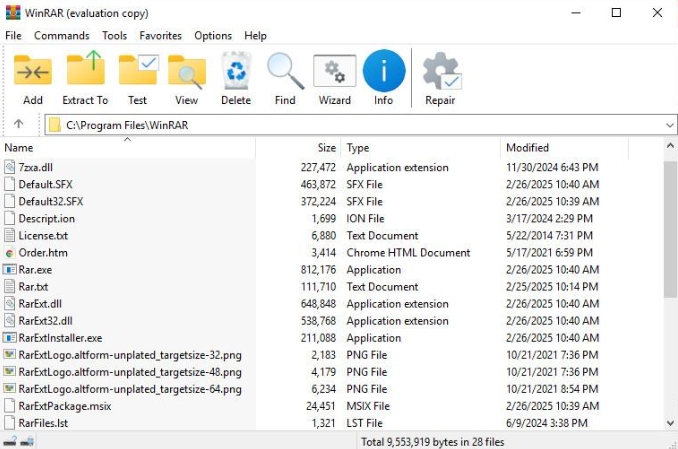
WinRAR’s interface is relatively straightforward and focused on archive management. The main window puts common actions such as adding files, extracting archives, testing archives, and viewing archive contents within easy reach.
For experienced users, this approach can be useful because many of WinRAR’s more advanced options are readily accessible. Users can also customize parts of the interface, including toolbar buttons and certain context-menu options.
For beginners, however, some of the terminology and number of available options may take a little time to understand. WinRAR does include a Wizard specifically designed to guide less experienced users through common tasks such as creating or extracting an archive.
In other words, WinRAR is not particularly difficult to use, but it can feel more technical than necessary if all you want to do is quickly zip or unzip a few files.
WinZip: More Guided and Feature-Focused
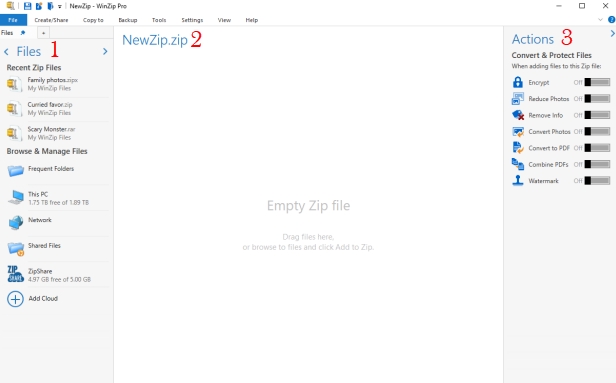
WinZip takes a more modern, feature-oriented approach. Its current interface can display separate Files, Zip, and Actions panes, allowing users to browse files, manage an archive, and access relevant actions from the same window.
The application also provides different interface configurations, including Simple and Advanced ribbon options, allowing users to choose how much of the available functionality is exposed at once.
This can make WinZip easier to approach for users who prefer having actions clearly presented rather than searching through menus. The trade-off is that there is considerably more going on inside the application because WinZip has expanded into file management, sharing, PDF tools, image tools, and other functions.
For someone who only wants compression, that extra functionality can sometimes feel unnecessary.
Which Is Easier to Use?
For basic archive tasks, both are relatively accessible once you understand the basic workflow.
WinRAR’s interface is more focused on traditional archive management, which can appeal to users who want direct access to compression and extraction tools.
WinZip places more emphasis on guiding users through a broader range of file-related tasks. Its interface may be more approachable for people who want compression alongside file management and sharing, although the larger feature set also means there is more to learn.
Ultimately, the difference is less about one application being difficult and the other being easy. WinRAR prioritizes control and traditional archive management, while WinZip prioritizes a broader, more guided file-management experience.
WinRAR vs WinZip: Features Beyond Compression
Compression is the common ground between WinRAR and WinZip, but the two applications have evolved in different directions. WinRAR remains primarily an archiving utility, while WinZip has built a much broader collection of file-management tools around its compression features.
WinRAR: More Focused on Archive Management
WinRAR’s additional tools are largely connected to working with archives.
Users can split large archives into multiple volumes, create self-extracting archives, add recovery records to RAR archives, test archives for errors, and use command-line functionality for more advanced workflows. WinRAR also supports creating and managing encrypted archives.
These features are particularly useful for people who regularly work with large collections of files or need more control over how archives are created and distributed.
The advantage of this focused approach is that WinRAR doesn’t try to turn itself into an all-purpose file-management suite. If your primary requirement is creating, extracting, and managing archives, most of its features remain relevant to that task.
WinZip: A Broader File-Management Suite
WinZip offers a much wider selection of tools outside traditional compression.
Depending on the version and available features, WinZip includes tools for cloud storage integration, file sharing, PDF management, image management, encryption, backup-related tasks, and file organization. Its current feature set also includes tools such as SafeShare for creating and sharing protected files.
This broader approach can be useful for users who regularly perform several different file-related tasks. Instead of using one application for compression, another for PDF work, and another for certain sharing tasks, WinZip attempts to bring more of those functions together.
However, this is also where the two products differ most significantly in philosophy.
If you only want a program for compressing and extracting archives, many of WinZip’s additional features may not provide much practical benefit. In that situation, paying for a larger feature set doesn’t necessarily make sense.
Which Approach Makes More Sense?
The answer depends heavily on how you use the software.
WinRAR’s focused feature set is better suited to users who want an archive utility with advanced compression and archive-management capabilities.
WinZip’s broader feature set is more relevant to users who want compression combined with file sharing, cloud services, PDF tools, and other file-management functions.
This is an important distinction when comparing their value. A larger feature list isn’t automatically more useful. If you will never use WinZip’s additional tools, its broader functionality may be less important than WinRAR’s more focused approach.
WinRAR vs WinZip: File Sharing & Cloud Integration
If you regularly compress files before sending them to someone else or moving them between cloud services, the differences between WinRAR and WinZip become more noticeable.
WinRAR: Simple and Straightforward
WinRAR can certainly be used as part of a file-sharing workflow. You can compress files into an archive, protect the archive with a password, split large archives into separate volumes, and then send or upload the resulting files using whatever service you normally use.
What WinRAR does not attempt to do is provide a large built-in ecosystem for sharing those files.
That means you will generally rely on a separate service such as email, cloud storage, or a file-transfer platform to actually deliver the archive. For users who already have a preferred cloud or file-sharing service, this may not be a problem at all.
In fact, some users may prefer the separation: WinRAR handles the archive, while their existing service handles storage and distribution.
WinZip: More Built-In Sharing Options
WinZip takes a more integrated approach. Its current feature set includes connections to cloud services and tools designed specifically around sharing files. WinZip supports working with services such as Google Drive, OneDrive, Dropbox, and Box, allowing users to access and manage files from supported cloud locations within the application.
It also offers SafeShare, which is designed to let users compress and encrypt files before sharing them. Depending on the workflow, SafeShare can provide additional controls such as password protection and expiration options for shared files.
That makes WinZip more than simply a program for creating ZIP files. It can act as part of a larger workflow where files are compressed, protected, stored, and shared.
Which Is Better for File Sharing?
For users who already have their own preferred cloud-storage and file-sharing services, WinRAR can be perfectly adequate. It creates the archive, and the external service takes care of the rest.
WinZip has the advantage for users who want more of that workflow brought into one application. Its cloud integrations and dedicated sharing tools reduce the need to move between separate applications for certain tasks.
The trade-off is that these additional capabilities are only valuable if you actually use them. Someone who simply compresses a folder and uploads the resulting ZIP file to Google Drive may not gain much from WinZip’s broader sharing ecosystem.
WinRAR vs WinZip: Compatibility & Supported Formats
A compression utility is only useful if it can work with the archive formats and operating systems you rely on. WinRAR and WinZip both support common formats, but there are differences in their platform support and approach to archive compatibility.
WinRAR
WinRAR is primarily known as a Windows application, where it provides its full graphical interface and feature set. RARLAB also provides command-line versions and related tools for other operating systems, including macOS and Linux.
On Windows, WinRAR can create RAR and ZIP archives and extract a broad range of formats. Its support for RAR is particularly important because RAR is the archive format most closely associated with the software.
This makes WinRAR a practical choice for users who regularly receive or create RAR archives and need more control over how those archives are handled.
WinZip
WinZip also has broad archive-format support. It can create ZIP and ZIPX archives and extract a variety of formats, including RAR, 7Z, TAR, GZIP, and others.
Its current product lineup is also more explicitly designed around multiple platforms and devices, with versions and related applications available across Windows, macOS, iOS, and Android. Availability and feature sets can vary between platforms, so users should check the specific version they intend to use.
For Windows users, WinZip provides a full desktop application with its wider collection of compression, file-management, sharing, and cloud features.
What About Windows 11?
Both WinRAR and WinZip support modern Windows versions, including Windows 11. This means compatibility with Microsoft’s current desktop operating system is unlikely to be the deciding factor for most Windows users.
The more important question is what type of archives you need to create or open and whether you need features beyond basic compression.
Which Has Better Compatibility?
Neither application has a meaningful advantage for ordinary ZIP files. Both can handle common archive formats and are suitable for typical Windows compression and extraction tasks.
WinRAR has a particularly strong reason to choose it if RAR archives are central to your workflow, especially if you need the additional tools associated with the RAR format.
WinZip, meanwhile, may be more attractive if you want broader platform coverage combined with cloud and file-management features.
For most Windows users, compatibility alone is unlikely to settle the WinRAR vs WinZip debate. The more significant differences are the applications’ features, workflows, and pricing.
WinRAR vs WinZip: Performance & Resource Usage
Performance is one of the more difficult areas to judge in a WinRAR vs WinZip comparison because compression speed and archive size depend heavily on the files being compressed, the selected compression settings, storage speed, processor, and available memory.
A large collection of documents, for example, can behave very differently from a folder containing already-compressed photos or videos. Because VisionTechHQ has not conducted a controlled benchmark using identical hardware, files, and settings for both applications, we are not going to present specific compression times or claim a definitive speed winner.
WinRAR
WinRAR supports multi-threaded compression and has continued to improve its use of modern multi-core processors. RAR5, introduced in WinRAR 5, included improvements to compression and decompression performance on multi-core systems.
The software also gives users considerable control over compression settings. This can be useful when the priority is reducing archive size, but higher compression settings can require more processing time and system resources.
WinRAR’s performance can therefore be adjusted according to the task. Someone creating an archive for long-term storage may be willing to spend more time compressing it, while someone preparing a file for quick sharing may prefer faster settings.
WinZip
WinZip also supports modern compression methods and has continued to update its underlying support for formats such as RAR and 7-Zip. Its current documentation highlights updated compression components and improved compatibility with compressed files.
As with WinRAR, the workload makes a major difference. Compression is a processor-intensive operation in many situations, while reading and writing large archives can also make storage performance an important factor.
WinZip’s broader collection of file-management and sharing features means that its workload is not limited to compression alone. Depending on what a user is doing, the application may be handling additional operations such as cloud files, encryption, or file conversion.
What About Resource Usage?
Neither application should be judged by a single CPU or memory figure because resource usage changes according to the operation being performed.
Creating a heavily compressed archive can require considerably more processing than simply extracting a small ZIP file. Large archives can also place greater demands on storage and memory, depending on the format and settings being used.
For everyday tasks such as opening a downloaded ZIP file or creating a small archive, resource usage is unlikely to be the deciding factor for most modern Windows PCs.
Which Is Faster?
There is no responsible way to declare a universal speed winner without controlled testing.
WinRAR has a strong focus on efficient archive creation and exposes settings that allow users to balance compression level against processing time. WinZip also provides modern compression support and optimization work across supported formats.
For most users, the practical difference will depend more on the particular files and compression settings than on the brand name of the application.
If raw compression speed or archive size is particularly important to you, the best way to decide is to test both applications with the type of files you actually work with rather than relying on a generic benchmark.
WinRAR vs WinZip: Pricing & Licensing
Price can significantly change the value proposition of compression software, particularly when two products can perform many of the same basic tasks.
WinRAR and WinZip take noticeably different approaches to licensing.
WinRAR: Trial With a Perpetual License
WinRAR provides a 40-day trial for users who want to evaluate the software before purchasing it. After the trial period, users who want to continue using the licensed version can purchase a license. WinRAR’s license is not structured as a recurring monthly subscription.
This is one of WinRAR’s biggest differences from many modern software products. A user who purchases a WinRAR license is buying a perpetual license rather than signing up for an ongoing subscription.
For someone who expects to use an archive utility for several years, avoiding a recurring subscription can make the overall cost easier to justify.
WinZip: Subscription-Focused Licensing
WinZip also provides a trial period, but its current commercial model is more subscription-oriented. The software is sold as part of a broader product ecosystem, with different editions and feature sets depending on the user’s requirements.
This approach makes sense if you intend to use WinZip’s additional capabilities, such as cloud integration, file sharing, PDF tools, and other file-management features. However, it is a different proposition from paying once for a dedicated archive utility.
The important question therefore isn’t simply “Which one costs less?” It is “Which feature set are you actually paying for?”
Which Offers Better Value?
For someone who primarily wants to create, extract, and manage archives, WinRAR’s perpetual licensing model can be easier to justify because you are not committing to an ongoing subscription.
WinZip’s pricing becomes more understandable when its additional tools are actually useful to you. If you regularly use its cloud, sharing, PDF, and other file-management features, you are getting more than a basic compression utility.
On the other hand, paying for those additional capabilities makes less sense if all you need is a simple way to compress and extract files.
In short: WinRAR is the more straightforward option for users who want to pay for an archive utility rather than subscribe to a broader file-management suite. WinZip can make more sense when its additional tools are part of your everyday workflow.
Pricing note: Software pricing and available plans can vary by region, edition, promotions, and licensing terms. Readers should check the current official pricing pages before purchasing.
Want to Learn More?
If you’re deciding between WinRAR and WinZip, you can check the latest features, licensing options, and supported platforms on their official websites before making a decision.
Which One Should You Use: WinRAR or WinZip?
There is no single choice that makes sense for every user. WinRAR and WinZip overlap in their basic compression and extraction capabilities, but their broader feature sets make them suitable for somewhat different workflows.
Choose WinRAR If You…
Primarily need an archive utility.
If your main tasks are creating, extracting, testing, and managing compressed archives, WinRAR keeps its focus on those functions rather than surrounding them with a large collection of additional tools. If you want a more detailed look at the software itself, read our full WinRAR review.
Work with RAR archives regularly.
WinRAR’s native RAR support and archive-management features make it a natural fit for users who frequently create or manage RAR archives.
Want more control over archive creation.
Advanced users can adjust compression settings, split archives into volumes, create self-extracting archives, and use recovery records for RAR archives.
Prefer a perpetual license.
WinRAR’s licensing model can appeal to users who would rather purchase an archive utility without committing to a recurring subscription.
Choose WinZip If You…
Want more than compression.
WinZip has expanded into a broader file-management application, with features covering compression, encryption, sharing, cloud services, PDF tools, and other file-related tasks. For a more detailed look at the software, see our full WinZip review.
Regularly share files through cloud services.
WinZip can integrate with services such as Google Drive, OneDrive, and Dropbox, making it possible to incorporate compression and sharing into the same workflow.
Work with files that need to be protected before sharing.
WinZip’s sharing tools include encryption, password protection, and SafeShare functionality for workflows where files need to be compressed, protected, and distributed.
Want additional productivity tools in the same application.
Depending on the edition, WinZip can include tools for PDF management, backups, file organization, and other productivity tasks.
What About Casual Users?
If you only occasionally need to open a ZIP file or compress a folder, either application can handle those basic tasks.
The more important question is whether you need the additional capabilities offered by either product. Someone who rarely works with archives may not get much benefit from paying for a large collection of extra tools.
Likewise, a user who regularly handles RAR archives or wants more traditional archive-management functionality may have little reason to choose a broader file-management suite simply because it offers more features.
What About Business Users?
Both products can be used in professional environments, but their strengths can lead to different use cases.
WinRAR can make sense where employees primarily need reliable archive creation and extraction, particularly when working with RAR archives or more advanced archive workflows.
WinZip has a broader business-oriented feature set, including secure file sharing, cloud integrations, encryption, and enterprise-focused controls.
For businesses, however, the appropriate choice will depend on the organization’s specific security, collaboration, licensing, and IT requirements rather than simply which application has more features.
WinRAR vs WinZip: Key Advantages & Disadvantages
After comparing their compression capabilities, security features, interfaces, file-sharing tools, compatibility, performance considerations, and pricing models, the main strengths and limitations of each application become clearer.
WinRAR
Pros
- Strong support for creating and managing RAR archives.
- Extensive archive-management and compression options.
- Supports password protection and AES-256 encryption.
- Includes useful features such as archive recovery records and multi-volume archives.
- Perpetual licensing rather than an ongoing subscription.
- Well suited to users who want a focused archive-management tool.
Cons
- Its interface can feel more technical than some users may expect from a modern file-management application.
- It does not offer the same breadth of built-in cloud, file-sharing, and productivity tools as WinZip.
- Users who only need occasional basic ZIP operations may not need many of its advanced archive features.
WinZip
Pros
- Supports a broad range of archive formats.
- Combines compression with encryption, file sharing, cloud integration, and other file-management tools.
- Supports integrations with services including Google Drive, OneDrive, Dropbox, and Box.
- Includes dedicated secure-sharing functionality through features such as SafeShare.
- Offers additional tools for users who regularly work with PDFs, images, and other files.
Cons
- Its broader feature set can be unnecessary for users who only want a basic compression utility.
- Its subscription-oriented licensing model may be less appealing to users who prefer perpetual software licenses.
- Some of its additional features provide limited value if you already use separate applications or services for those tasks.
The Main Difference
The simplest way to look at the comparison is this:
WinRAR is more focused. WinZip is broader.
WinRAR puts more emphasis on traditional archive creation and management, while WinZip has developed into a wider file-management and sharing suite.
Neither approach is automatically better. The better fit depends on whether you want a dedicated archiving tool or an application that combines compression with a larger collection of file-related features.
Final VisionTech HQ Verdict: WinRAR vs WinZip
After comparing WinRAR and WinZip across compression, archive formats, security, usability, file sharing, cloud integration, performance, and licensing, the biggest takeaway is that these two applications are no longer trying to solve exactly the same problem.
WinRAR is the more focused archive utility. It puts its emphasis on compression, RAR archives, encryption, recovery records, multi-volume archives, and detailed archive management. Its perpetual licensing model is also attractive for users who want to purchase the software rather than maintain an ongoing subscription. WinRAR’s current Windows version supports Windows 11, and RARLAB continues to release security and maintenance updates; WinRAR 7.23, released in June 2026, addressed multiple security issues.
WinZip is the broader file-management solution. Alongside compression and encryption, it incorporates cloud integration, secure file sharing, backup functionality, PDF tools, and other productivity features. Its current product lineup includes different suites that bundle additional applications and services around the core WinZip experience.
That difference matters more than simply asking which program has the most features.
WinRAR Makes More Sense If You Mainly Want an Archive Tool
If your everyday requirements are creating archives, extracting downloaded files, working with RAR files, protecting archives with passwords, splitting large archives, or using recovery records, WinRAR’s focused approach is difficult to ignore.
It also gives advanced users considerable control over archive creation. Its RAR format supports features such as recovery records and multi-volume archives, while its encryption implementation supports AES-256 and the option to encrypt archive file names.
The licensing model is another important consideration. WinRAR’s official license agreement allows a 40-day trial, after which a license is required for continued use. Its licensing information describes the product as a perpetual license rather than a subscription.
For someone who simply wants a powerful archive manager and does not need a large collection of additional file-management tools, that makes a lot of sense.
WinZip Makes More Sense If You Want a Broader File Workflow
WinZip becomes more compelling when compression is only one part of what you need to do.
Its current feature set combines compression with cloud services, secure sharing, encryption, backups, and PDF-related functionality. WinZip also offers SafeShare for workflows where files can be compressed, encrypted, and shared with additional controls such as expiration.
That broader approach can be useful for people who regularly move files between their computer, cloud storage, email, and other services.
The trade-off is that you are also dealing with a larger software ecosystem. If you only need to create ZIP files and extract archives, many of those additional capabilities may simply go unused.
So, Which Should You Use?
For dedicated archiving and compression, WinRAR remains a very strong choice. Its RAR support, archive-management tools, encryption, recovery capabilities, and perpetual licensing make it particularly well suited to users who want a traditional but powerful archiving application.
For compression combined with file sharing, cloud services, backups, and productivity tools, WinZip is the more natural fit. Its broader feature set is useful when those additional functions are genuinely part of your workflow rather than features you will rarely touch.
The important point is that more features do not automatically mean better value. If you will never use WinZip’s additional tools, they should not be the main reason you choose it. Likewise, if you regularly work with advanced archives, WinRAR’s more focused approach may be more relevant than having a larger collection of unrelated utilities.
VisionTech HQ’s Take
WinRAR and WinZip are both capable choices in 2026, but they appeal to different types of users.
Choose WinRAR if your priority is powerful, flexible archive management and you prefer a perpetual license.
Choose WinZip if you want compression to be part of a wider workflow involving cloud storage, secure sharing, backups, PDFs, and other file-management tools.
For the average person who only occasionally needs to zip or unzip a file, either application can do the job. The deciding factor is therefore not simply which software can compress files better, but which one provides the tools you will actually use.
That is ultimately the most important distinction in this WinRAR vs WinZip comparison.
Frequently Asked Questions
Is WinRAR better than WinZip?
Neither is universally better. WinRAR is more focused on archive creation and management, while WinZip combines compression with a broader collection of file-management, cloud, sharing, and productivity features. The more suitable option depends on which features you actually need.
Is WinRAR still worth using in 2026?
Yes. WinRAR remains relevant for users who regularly create or manage RAR archives or want advanced archive-management features such as recovery records, multi-volume archives, encryption, and detailed compression settings. Its perpetual licensing model can also appeal to users who prefer not to pay for an ongoing subscription.
Is WinZip worth paying for?
It can be, particularly if you will use more than its basic compression functionality. WinZip’s additional tools for cloud storage, secure file sharing, encryption, backups, and PDF management can make the broader software package more useful for people who regularly work with those tasks.
If you only need to occasionally create or extract ZIP files, however, you may not get enough benefit from the additional features to justify paying for the software.
Can WinRAR open WinZip files?
Yes. WinRAR can open and extract ZIP archives, so you can use it to work with ZIP files created by WinZip or other compression utilities.
Can WinZip open WinRAR files?
Yes. WinZip supports opening and extracting RAR archives, so you do not necessarily need WinRAR simply because someone sends you a RAR file.
Which is easier to use, WinRAR or WinZip?
Both can handle basic compression and extraction without much difficulty. WinRAR has a more traditional archive-management interface, while WinZip provides a more feature-oriented interface designed around a wider range of file-management tasks.
For simple archiving, the difference is largely a matter of interface preference and how many additional tools you want available.
Which is better for large files?
Both applications can work with large archives, but there is no universal answer based on the software alone. The result depends on the files, archive format, compression settings, storage hardware, and system resources available.
WinRAR provides features such as multi-volume archives and recovery records that can be particularly useful when working with large or important RAR archives.
Which has better encryption, WinRAR or WinZip?
Both provide strong encryption options for protected archives. WinRAR supports AES-256 encryption, while WinZip also offers AES-based encryption.
For most users, the more important consideration is using a strong, unique password and understanding how the encrypted archive will be shared and stored.
Can I use WinRAR and WinZip on the same computer?
Yes. There is no general requirement to choose only one. Both applications can be installed on the same Windows PC, allowing you to use whichever is more convenient for a particular archive or workflow.
However, having multiple archive utilities installed can result in overlapping file associations and context-menu options, so you may want to configure which application handles common archive formats by default.
Is WinRAR free?
WinRAR provides a trial period, but continued use after the trial requires a license under its licensing terms. The software’s licensing model is based on a perpetual license rather than a recurring subscription.
Does WinZip have a free version?
WinZip provides trial access, but its full commercial feature set is offered through paid products and plans. The exact features and licensing options depend on the WinZip product or edition you choose.
Which should I choose: WinRAR or WinZip?
Choose WinRAR if you mainly want a dedicated archive utility with strong RAR support, advanced archive-management features, and a perpetual licensing model.
Choose WinZip if you want compression alongside cloud integration, secure file sharing, backups, PDF tools, and other file-management features.
For occasional ZIP extraction and basic compression, either can handle the job.
Leave a Reply